Why use the “PresentLive™ Sessions” report?
- Determine best practices: Check out how your most successful sales and marketing people are utilizing PresentLive™ to improve their efficacy
- Research for compliance purposes: who saw what when?
- Review audience discussion and feedback after a presentation
Steps
Click the “Reports” icon and the “PresentLive™ Sessions” tab
- View who presented, what they presented, and when
- Use filters to find a specific user, deck, or session
- Change the date range to view another time period
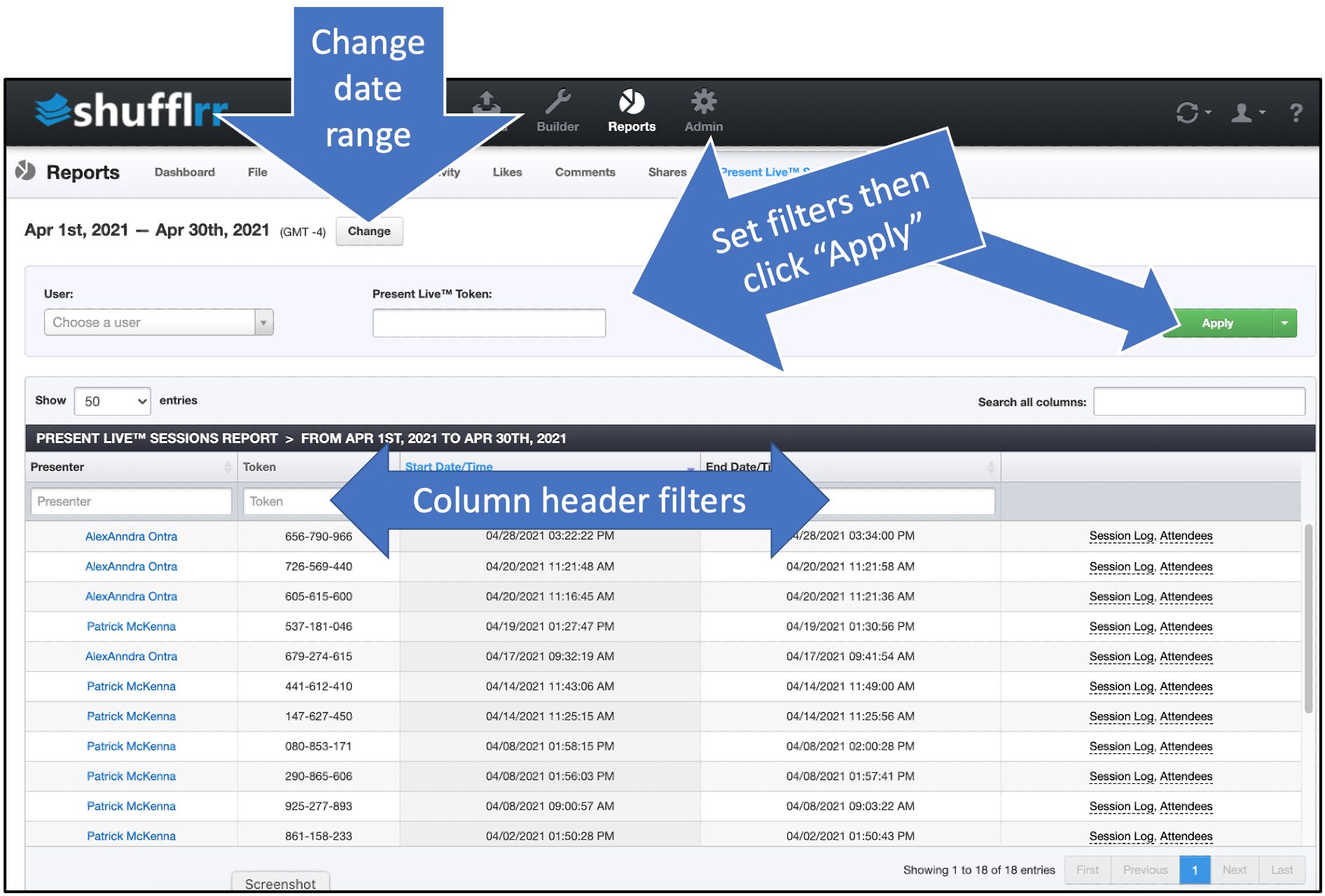
The last column contains links to the session log and to a list of attendees.
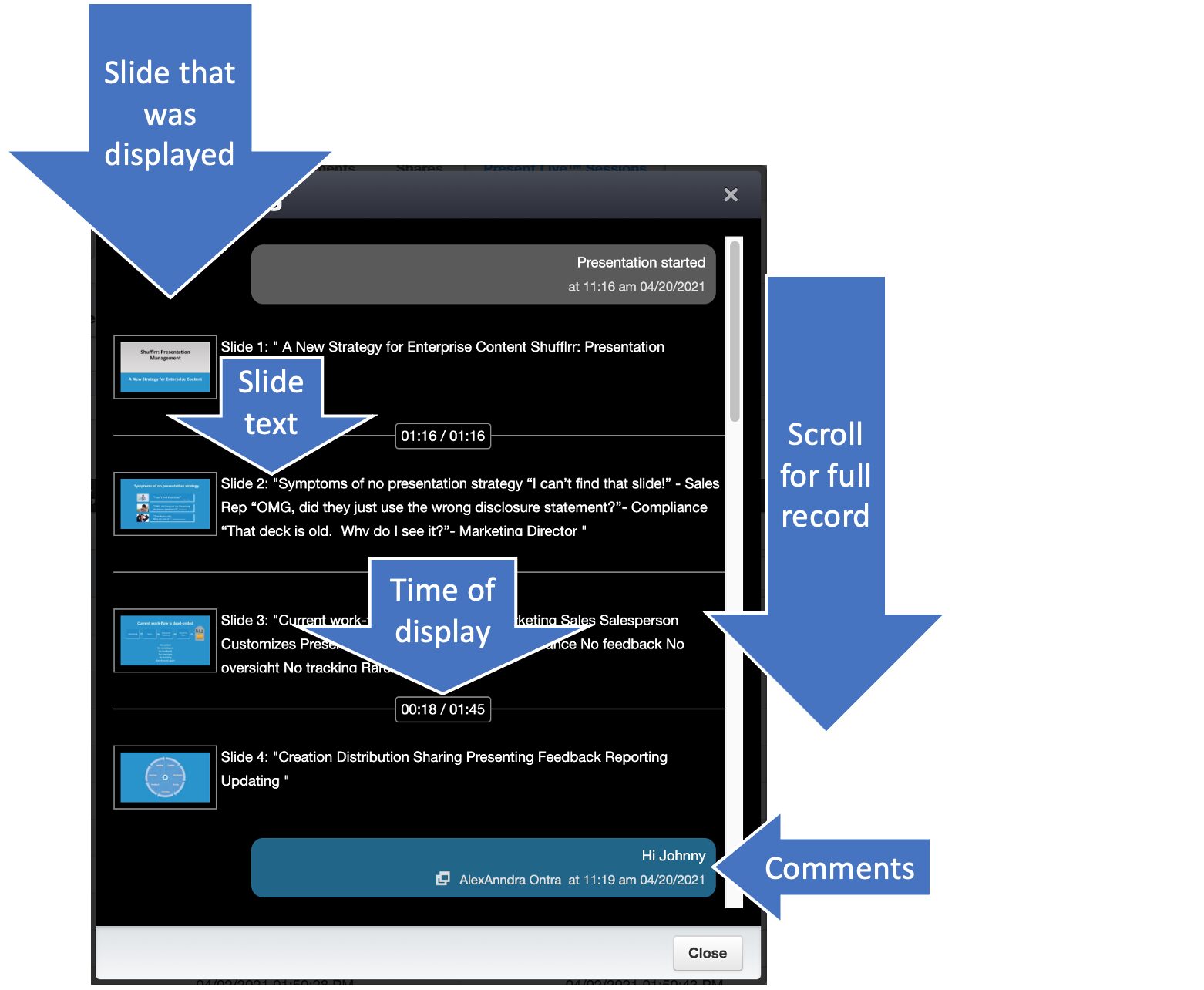
- The session log shows the time each attendee joined, the exact slides shown, their content, the time they were shown, and all the audience chat/comments.
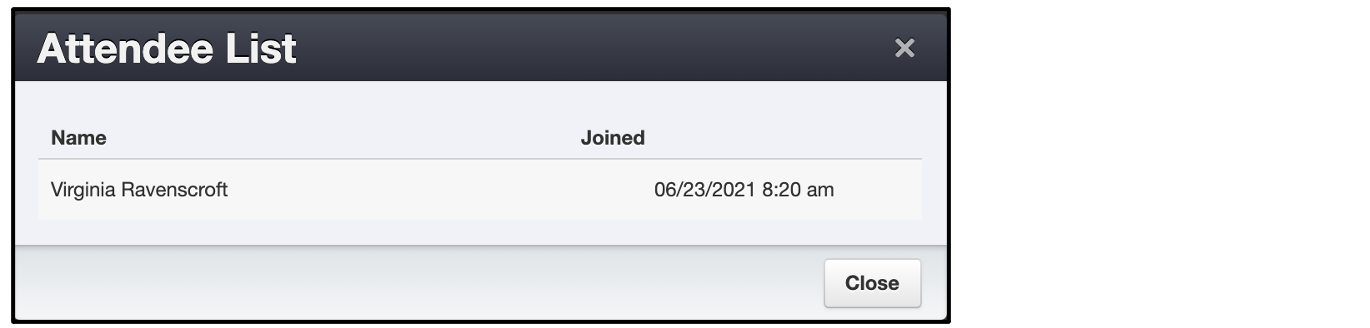
- The attendees list shows both the attendees and the time they joined the session.