
Upload File
To add a new file (presentation, video, images, documents, etc) use the folder upload API. The ID in the path is the ID of the folder that you want to upload the file into. Replace the {id} element in the url below with the id of the folder you want to upload the file into.
Shufflrr uses the Windows method of file management. When a file is uploaded to a folder and it has the same filename and extension it will be considered an update to the file. For updating an existing file this same method will be used to upload the file to update to the same folder it exists in with the same filename.
| Method type | POST |
| API Location | https://wwwapi.shufflrr.com/api/folders/{id}/upload |
| Swagger documentation location | https://wwwapi.shufflrr.com/api/docs/ui/index#!/Folders/Folders_Upload |
Where {id} in the above API Location is the Folder ID of the folder to upload to
To test this API with postman you will need to set specific headers and settings (these settings will also need to be set in your code to interface with the API). Headers are listed in the Headers section above in this document.
In Postman click on Body and then:
Change the format dropdown to be form-data
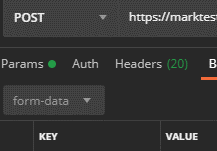
For the first record, inside the key field hover your mouse over the right-hand side and a dropdown will appear. It is defaulted to Text. Click it and choose File. This will cause a Select Files button to appear in the Value Field.
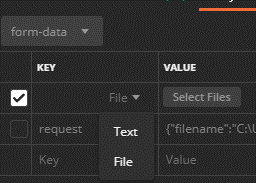
Click the button and browse to the file to be uploaded.
Once this is selected, you can submit the request send the request to upload the file.
Sample Successful Upload
[
{
"filename": "filename.xxx",
"error": null,
"complete": true
}
]
Sample Failed Upload
An error occurred uploading the file.