
Summary
What is Shufflrr’s API?
Shufflrr’s API offers a wide variety of actions to allow your team to integrate multiple systems with Shufflrr to cover a range of use cases.
What systems can I integrate with Shufflrr’s API?
Any system that can call APIs can integrate with Shufflrr’s APIs.
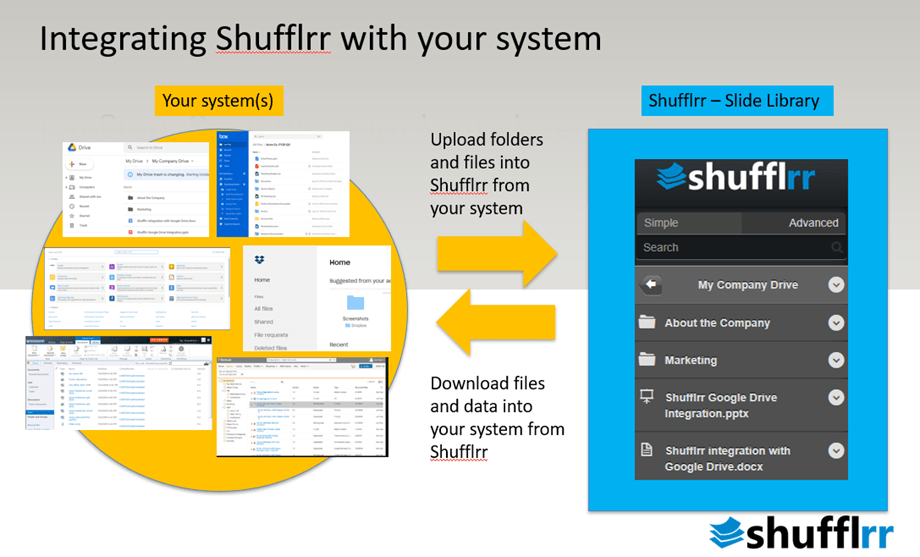
Some of the systems that our customers have integrated with Shufflrr APIs include:
- SalesForce
- SharePoint
- Google Drive
- Veeva
- DropBox
- Box.com
What can I use Shufflrr’s API for?
These are just a few use cases that our customers have used Shufflrr’s API for:
- Recreating folder structure in Shufflrr to replicate your system structure
- Uploading files from your system into Shufflrr
- Downloading files from Shufflrr into your system
- Updating data in Shufflrr from your system
- Updating your system with data from Shufflrr
- Importing reporting information from Shufflrr into your system for reporting and analytics
Purpose
The purpose of this documentation is to provide information on the core Shufflrr API endpoints so your team can easily integrate your system(s) with Shufflrr.
What is an API
API stands for Application Programming Interface. Using an API allows for one system (in this case your system like SharePoint, SalesForce, Google Drive, Veeva, Box, Dropbox, etc) to interface with another system (in this case Shufflrr). Examples of use cases are:
- Recreating folder and file structure in Shufflrr as in your system
- Uploading files from your system into Shufflrr
- Downloading files from Shufflrr into your system
- Updating data in Shufflrr
- Updating your system with data from Shufflrr
- Importing reporting information from Shufflrr into your system for reporting and analytics
What type of APIs does Shufflrr use?
Shufflrr uses REST (RE presentational State Transfer) architecture for our APIs. Requests (what you send to Shufflrr API) and responses (what Shufflrr sends back to you) are formatted in JSON (J avaS cript Object Notation). You can read more about REST API architecture on the Wikipedia page for REST. To learn more about JSON and its format you can read more on JSON.org.
Parts of an API call
When calling an API (sending a request) there are 6 main pieces that need to be defined:
- Method – What type of action you are trying to accomplish
- EndPoint – The URL you are calling to perform the action
- Parameters – These are values that are sent in as part of the URL string
- Authentication – This is how your application will get authorized with Shufflrr to allow your system to perform the desired actions
- Header – These are metadata values used to give instructions or settings to Shufflrr for acting upon the desired method with the specified request (body)
- Body – This is the information on the requested action to be performed. This is sometimes referred to as a payload.
When information is returned from the call to an API the data that is returned is called a Response. The information returned in the Response Body is sent back in JSON format as well. This information can then be parsed and used in your application.
API Request Methods
The APIs used in Shufflrr use the following methods:
- GET – Requests data from Shufflrr. This is the most common type of request.
- POST – This is generally used to submit a form or to create a new object in Shufflrr.
- PUT – This is generally used to update an existing object in Shufflrr.
- DELETE – This is used to remove an object from Shufflrr.
Complete list of Shufflrr’s API EndPoints
Shufflrr’s API is documented in Swagger and can be found at https://wwwapi.shufflrr.com/api.
to use the APIs for your specific portal you should replace wwwapi with your specific subdomain (portal name). For example, if your Shufflrr portal is ABC123.shufflrr.com you would replace wwwapi with ABC123 for all the API calls, headers, and links in the payload (body).
Authentication
All calls to Shufflrr APIs need to be authenticated. Before calling other APIs the first call that will need to be made is to the Login API. The Login API will return a cookie that should be used by all other API calls to allow them to be authenticated and authorized to perform the desired action.
Header
For most of the Get APIs, no headers are required to be set but it is recommended to set:
| Key | Value |
|---|---|
| Content-Type | application/json |
For other calls (puts, posts, deletes) the following headers should be set:
| Key | Value |
|---|---|
| Accept-Encoding | gzip, deflate, br |
| Accept-Language | en-US,en;q=0.9 |
| Access-Control-Allow-Credentials | true |
| Access-Control-Allow-Origin | https://wwwapi.shufflrr.com |
| Content-Type | application/json |
| Origin | https://wwwapi.shufflrr.com |
| User-Agent | Mozilla/5.0 (Windows NT 10.0; WOW64) AppleWebKit/537.36 (KHTML, like Gecko) Chrome/72.0.3626.120 Safari/537.36 Vivaldi/2.3.1440.57 |
| Accept | application/json, text/javascript, /; q=0.01 |
| Referer | https://wwwapi.shufflrr.com/Shufflrr |
| X-Requested-With | XMLHttpRequest |
| Content-Length | <000> |
Where <000> is the length of the request body
Examples of Content-Length:
{}Would be a Content-Length of 2
{
 "fileIds": [
  11111111
 ],
 "expiryDate": "2020-12-27T22:39:59.678Z",
 "clearExpiryDate": false
}
Would be a Content-Length of 107
Body
The Body of a request is not used in GET Methods. It is only used in POST, PUT, & DELETE methods. The body is specific to each individual call but each request body must be specified in JSON format.
Getting Help from Shufflrr
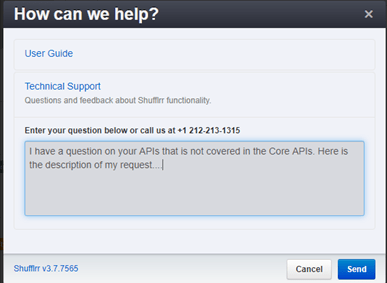
If you have additional questions on the APIs or need details for functionality not covered in the Core APIs, please contact our technical support. You can access this when logged into your Shufflrr portal and clicking on the ‘?’

When the ‘How can we help?’ dialogue box appears, click on the link for ‘Technical Support’. Fill out text area with your question and details. Then click on the save button.
Getting started
Best practices are to have a separate group and users dedicated to API connections. It is also recommended to have a separate user for each connecting system. Furthermore, it will keep API connections and their activities separate from everyday Shufflrr end-user activities.
Setup a group for the API user to use. After you log into Shufflrr go to the 'Admin' section and then click on the 'Groups' Tab and click on ‘Add Group’ button.
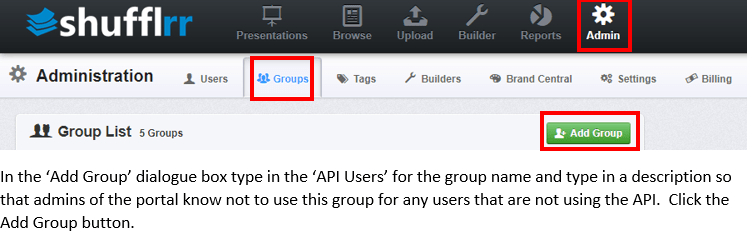
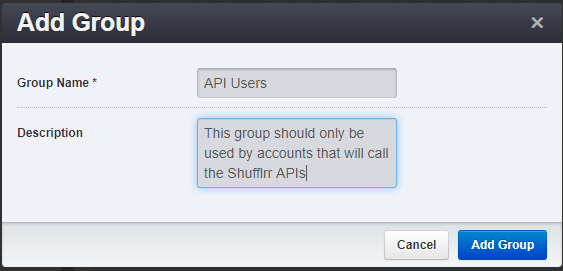
In the ‘Add Group’ dialogue box type in the ‘API Users’ for the group name and type in a description so that admins of the portal know not to use this group for any users that are not using the API. Click the 'Add Group' button.
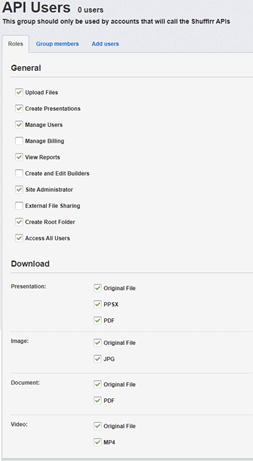
In the group configuration pane check the boxes next to the rights you want your API user to have the rights to perform. For most use cases the below settings would cover the needed rights. Then click on 'Update'.
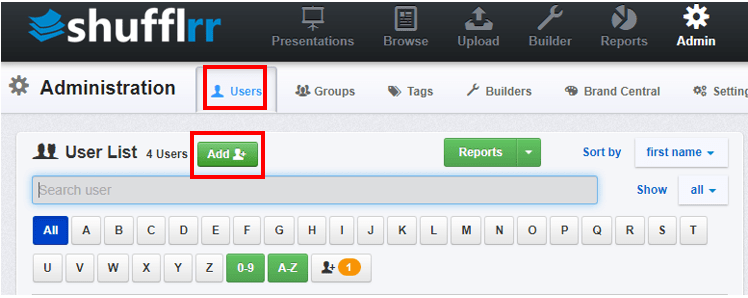
Next, setup a user in your portal to be used for the API calls. Still in the 'Admin' section, click on the 'Users' tab click on the 'add' button.
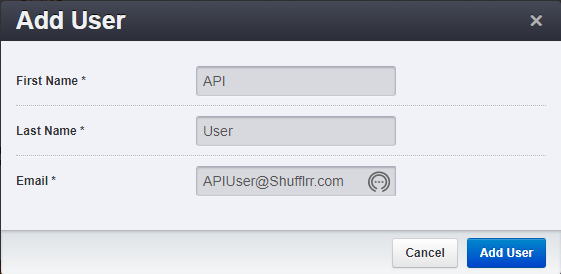
In the 'Add User'' dialogue box Type in API for the first name, User for the last name, and provide an email address. Note: You cannot use an email address of an existing user as users are identified by their email address. Click on the 'Add User' button.
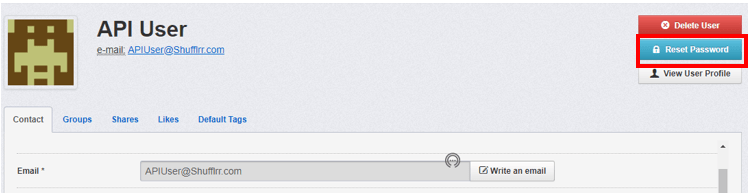
After the user is added to your Shufflrr portal, click on the API User in the user list. Then in the user detail area, click on the 'Reset Password' button to send an email to the address specified for the user. The email will contain a link for the password to be set for the API User.
After you set the password for the API User account, go back to the Shufflrr portal and on the API User account, click on the 'Groups' tab. Check the box next to ‘API Users’ and click the 'Save' button.
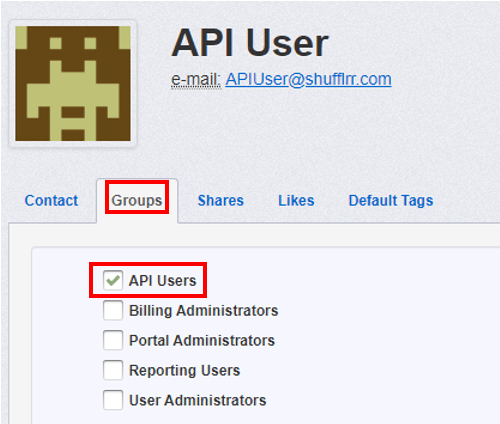
The API user will only be able to act upon folders (and files in them) that they have access to. Therefore the API user(s) will need permissions to the folders that the API user will affect.
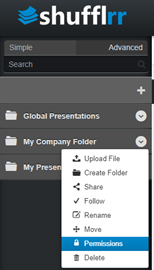
If you have existing folders in your Shufflrr portal (that you want to be able to manage through the APIs) make sure to set the permissions to allow for the API Users group to have access to them. In Shufflrr click on the down arrow next to each folder you want to modify the permissions on and click on ‘Permissions’ from the menu.
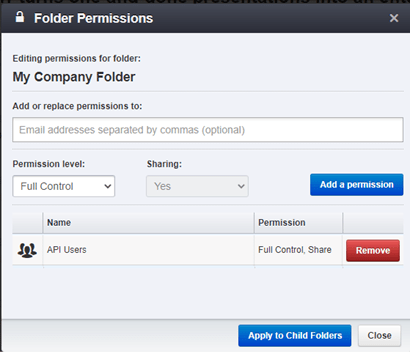
In the 'Folder Permissions' dialogue box, type in API Users and select the API Users group. Change the Permission Level to Full Control and click on the 'Add a permission' button. Then click on the 'Apply to Child Folders' button to give permissions to the folders under the one you are updating the permissions on.
When a new folder is created in the Shufflrr front end be sure to provide to grant access to the needed API user(s). When it is created using the API the rights will be set on the folder automatically.
Get familiarized with the APIs
We recommend that your developer use a tool like postman to test out and familiarize themselves with the APIs before they start coding the solution.
Core APIs
This section will cover the core functionality for interfacing with the Shufflrr APIs.
Core API Details
When calling the APIs there are some pieces of data that will be returned in the response body that you will either use to make subsequent calls to other APIs or you can store in your calling system so that you do not have to perform some GET APIs to get the IDs for some elements. Each API call will point out which data points will be used with other API calls.
Login
In order for Shufflrr to validate your API user has the rights to perform the actions, the account must login. To interface with the Shufflrr APIs the first step is to authenticate the session by using the Account Login API. This API is used to send in a specific user (API User). This API will validate that the account has access to your Shufflrr portal. A successful call will return a cookie which will need to be used in subsequent calls to other APIs to validate that the session is authenticated and authorized.
| Method type | POST |
| API Location | https://wwwapi.shufflrr.com/api/account/login |
| Swagger documentation location | https://wwwapi.shufflrr.com/api/docs/ui/index#!/Account/Account_Login |
Sample Request Body
{
 "emailAddress": "APIUser@shufflrr.com",
 "password": "Password",
 "keepLoggedIn": true
}
Replace the email and password in the above request body with the email and password for the API User account you setup in the steps above.
Successful Login
When a login is successful the success element in the response body will be set to true. From the response body capture these pieces of data that will be used in other API calls:
- portalId (in the user element) – This is the ID of your Shufflrr portal.
- id (in the user element) – this is the ID of the API User.
Login Failure
When a login fails the success element in the response body will be set to false.
Get All Folders
To get a list of all Folders in the Shufflrr portal use the All Folders API.
| Method type | GET |
| API Location | https://wwwapi.shufflrr.com/api/folders/all |
| Swagger documentation location | https://wwwapi.shufflrr.com/api/docs/ui/index#!/Folders/Folders_All |
Match up on the folder name (and position in the folder tree) to capture the id of the folder to be used in other API calls.
Create Folder
To create a new folder in Shufflrr call the Create Folder API. Make sure to set the parentFolderId to the Folder ID that want the new folder created in.
| Method type | POST |
| API Location | https://wwwapi.shufflrr.com/api/folders |
| Swagger documentation location | https://wwwapi.shufflrr.com/api/docs/ui/index#!/Folders/Folders_Post |
Sample Request Body
 {
  "fileType": "Folder",
  "isFolder": true,
  "isFollowedByCurrentUser": true,
  "userPermissions": "16777215",
  "id": 0,
  "name": "New Folder Name",
  "description": "This is the description for my folder",
  "createdDate": "2020-10-21T12:48:10.504Z",
  "modifiedDate": "2020-10-21T12:48:10.504Z",
  "createdById": "XXXXXXXX-XXXX-XXXX-XXXX-XXXXXXXXXXXX",
  "createdByName": "API User",
  "modifiedById": "XXXXXXXX-XXXX-XXXX-XXXX-XXXXXXXXXXXX",
  "modifiedByName": "API User",
  "parentFolderId": XXXXXXXX,
  "portalId": 2261101,
  "deleted": false
 }
Keep id set to 0 in the request body. Shufflrr will assign an ID when it creates the folder
Make sure to replace the values in the above Request Body with the appropriate Values:
| Request Body Value | API call | Value or Element(s) to use from API call |
|---|---|---|
| name | N/A | Use the name of the folder from your sending system |
| description | N/A | Use the description of the folder from your sending system |
| createdDate | N/A | Use the current date and time |
| modifiedDate | N/A | Use the current date and time |
| createdById | Login | id |
| modifiedById | Login | id |
| parentFolderId | All Folders | id |
| portalId | Login | portalId |
If you wish to store the ID of folders when they are created, use the id returned in the response body for each folder.
Get Folder Contents
To get information all of the contents of a folder (sub folders and files) call the Get Folder Contents API.
| Method type | GET |
| API Location | https://wwwapi.shufflrr.com/api/folders/{id}/contents |
| Swagger documentation location | https://wwwapi.shufflrr.com/api/docs/ui/index#!/Folders/Folders_Contents |
Where {id} in the above API Location is the Folder ID to get the contents of
Update existing folder name
To rename an existing folder to another name use the folders API. The ID is the ID of the folder you are looking to rename.
| Method type | PUT |
| API Location | https://wwwapi.shufflrr.com/api/folders |
| Swagger documentation location | https://wwwapi.shufflrr.com/api/docs/ui/index#!/Folders/Folders_Put |
Sample Request Body
{
"id": 0,
"name": "New Folder Name"
}
Replace 0 with the ID of the folder you want to rename and the name value with the name you want the folder set to.
Move folder
To move a folder and all its contents use the Folder Move API. You will need to replace the {id} in the URL path with ID of the folder you want to move. The request body will contain just the ID of the folder you want the folder you are moving to be under.
| Method type | POST |
| API Location | https://wwwapi.shufflrr.com/api/folders/{id}/move |
| Swagger documentation location | https://wwwapi.shufflrr.com/api/docs/ui/index#!/Folders/Folders_Move |
Where {id} in the above API Location is the Folder ID of the folder to move
Sample Request Body
To move the folder under another folder $$$$$$$$$$$$$$$$$$$$$$$$$$$$$$$$$$$$$$$$
0Replace 0 with the folder ID you want to move the folder under. Note that this request body does not have the curly brackets around the data and only includes the folder ID to move the folder under.
To move the folder to be a root folder $$$$$$$$$$$$$$$$$$$$$$$$$$$$$$$$$$$$$$$
{
"bodyData": null
}
Remove folder
To remove a folder and all its contents use the folder delete method. The id in the path will be the ID of the folder you want to remove (retrieved from one of the previous calls in Get list of folders section).
| Method type | DELETE |
| API Location | https://wwwapi.shufflrr.com/api/folders/{id} |
| Swagger documentation location | https://wwwapi.shufflrr.com/api/docs/ui/index#!/Folders/Folders_Delete |
Where {id} in the above API Location is the Folder ID of the folder to remove
Additional Headers
These Headers need to be added to the ones specified at the top of this document for this call
| Key | Value |
|---|---|
| Sec-Fetch-Site | same-origin |
| Sec-Fetch-Mode | cors |
| Sec-Fetch-Dest | empty |
Sample Request Body
{}Upload File
To add a new file (presentation, video, images, documents, etc) use the folder upload API. The ID in the path is the ID of the folder that you want to upload the file into. Replace the {id} element in the url below with the id of the folder you want to upload the file into.
Shufflrr uses the Windows method of file management. When a file is uploaded to a folder and it has the same filename and extension it will be considered an update to the file. For updating an existing file this same method will be used to upload the file to update to the same folder it exists in with the same filename.
| Method type | POST |
| API Location | https://wwwapi.shufflrr.com/api/folders/{id}/upload |
| Swagger documentation location | https://wwwapi.shufflrr.com/api/docs/ui/index#!/Folders/Folders_Upload |
Where {id} in the above API Location is the Folder ID of the folder to upload to
To test this API with postman you will need to set specific headers and settings (these settings will also need to be set in your code to interface with the API). Headers are listed in the Headers section above in this document.
In Postman click on Body and then:
Change the format dropdown to be form-data
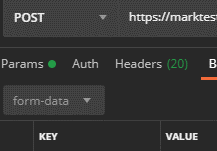
For the first record, inside the key field hover your mouse over the right-hand side and a dropdown will appear. It is defaulted to Text. Click it and choose File. This will cause a Select Files button to appear in the Value Field.
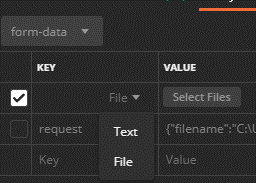
Click the button and browse to the file to be uploaded.
Once this is selected, you can submit the request send the request to upload the file.
Sample Successful Upload
[
{
"filename": "filename.xxx",
"error": null,
"complete": true
}
]
Sample Failed Upload
An error occurred uploading the file.Get Actions Queue
After uploading a file, it will be loaded into a queue. The uploadedFileId of the file will not be created until the file has been processed and stored in Shufflrr. When files are first sent in, the queue will show them with actionType set to "ProcessUploadedFileAction" and the status is set to "New". DO NOT use the ID element because the ID in the queue is temporary; it is not the final file ID in Shufflrr.
Once the file is processed in Shufflrr, it will then get it’s uploadedFileId. The uploadedFileId element is the ID for the file you uploaded matching on:
- file name
- folder id uploaded to
- actiontype value of “ProcessUploadedFileAction”
- status value of “CompletedSuccess”
The file information will remain in the queue for 24 hours or until a user Dismisses the file from the queue in the Shufflrr UI.
| Method type | GET |
| API Location | https://wwwapi.shufflrr.com/api/actionsqueue |
| Swagger documentation location | https://wwwapi.shufflrr.com/api/docs/ui/index#!/ActionsQueue/ActionsQueue_Get |
If you wish to store the ID of files as they process use the uploadedFileId value.
Get list of files
To get a list of all files (presentation, video, images, documents, etc) use the get files API. Sending the request without any parameters will return all the files in the portal.
| Method type | GET |
| API Location | https://wwwapi.shufflrr.com/api/files |
| Swagger documentation location | https://wwwapi.shufflrr.com/api/docs/ui/index#!/Files/Files_Get |
If you wish to match up on parentFolderId and name and store the id value for the specific file
Get File
To get the detailed information on a specific file call the Get File API. Replace the {id} in the url below with the file id that you want to get the information on.
| Method type | GET |
| API Location | https://wwwapi.shufflrr.com/api/files/{id} |
| Swagger documentation location | https://wwwapi.shufflrr.com/api/docs/ui/index#!/Files/Files_Get_0 |
Where {id} in the above API Location is the File ID of the file you want to get
Update information on an existing file
To update information on a file that was previously uploaded (File Name & Description), use the update files API. The ID in the Body of the request is the ID of the file to change the information on.
| Method type | PUT |
| API Location | https://wwwapi.shufflrr.com/api/files |
| Swagger documentation location | https://wwwapi.shufflrr.com/api/docs/ui/index#!/Files/Files_Put |
Sample Request Body
{
"id":0,
"name":"NewFileName.pptx",
"description":"New description"
}
Replace 0 with the file ID you want to apply the new file name and description to. Specify the file name and description that you want updated on the file
Move a file
To move a file into a different folder, use the move files API
| Method type | POST |
| API Location | https://wwwapi.shufflrr.com/api/files/move |
| Swagger documentation location | https://wwwapi.shufflrr.com/api/docs/ui/index#!/Files/Files_Move |
Sample Request Body
{
"fileIds": [
X
],
"targetFolderId": 0,
"overwriteExisting": true
}
Update the above Request body by:
- Replace X with the file ID (can also do a comma separated list of file IDs) you want to move to the new folder.
- Replace 0 with the folder ID you want to move the file(s) into.
- If you wish to overwrite a file (with the same name) in the destination folder then leave overwriteExisting set to true.
- If you change overwriteExisting to false and it encounters a file in the destination folder with the same name, it will not move the file and will return a response of “File already exists.”
Download a file
To download a file from Shufflrr use the files download API. Replace the {id} in the URL below with the ID of the file you want to download.
| Method type | GET |
| API Location | https://wwwapi.shufflrr.com/api/files/{id}/download |
| Swagger documentation location | https://wwwapi.shufflrr.com/api/docs/ui/index#!/Files/Files_Download |
Where {id} in the above API Location is the File ID of the file you wish to download
Remove file
To remove a file from Shufflrr, use the delete file API. Replace the {id} in the above URL with the file ID to be removed.
If you wish to remove the file immediately send in an empty request body. If you wish to set an expiry date on the file instead, set the fields value in the request to the ID of the file (or a comma separated list of files) you want to set an expiry Date on and set the expiryDate value to the date you want Shufflrr to automatically expire the file(s) on.
| Method type | DELETE |
| API Location | https://wwwapi.shufflrr.com/api/files/{id} |
| Swagger documentation location | https://wwwapi.shufflrr.com/api/docs/ui/index#!/Files/Files_Delete_0 |
Where {id} in the above API Location is the File ID of the File you wish to remove
Sample Request Body
To remove immediately $$$$$$$$$$$$$$$$$$$$$$
{}To set expire date $$$$$$$$$$$$$$$$$$$
{
"fileIds": [
 0
],
"expiryDate": "2020-10-27T22:39:59.678Z",
"clearExpiryDate": false
}
Replace 0 with the ID of the file (or comma separated list of the files) you wish to set the expire date on. Replace the value in the expiryDate element to contain the time and date you want Shufflrr to expire the file(s) on.
Presentation Slides
To get information on all the slides of a specific presentation use the Presentation Slides API. Replace the {id} in the url below with the file id of the presentation you want the slide information of.
| Method type | GET |
| API Location | https://wwwapi.shufflrr.com/api/presentations/{id}/slides |
| Swagger documentation location | https://wwwapi.shufflrr.com/api/docs/ui/index#!/Presentations/Presentations_Slides |
Where {id} in the above API Location is the File ID of the Presentation you wish to get the slides of
APIs by Category
Account APIs
Use the account APIs to login, request access, and request and perform password resets
Login
RequestPasswordReset
This API is used to trigger a password reset request email (if the email exists in the Shufflrr portal) to be sent to the provided email address. This API will always return 'True' and will not return any message to specify if an email address exists in Shufflrr or not. An email with the link for the user to reset their password will only be sent in the case of the specified user existing in the Shufflrr Portal.
This API needs to be called first when trying to do a password reset. The resetkey parameter that is sent in the password reset request email will need to be used in the PasswordReset API.
| Method type | POST |
| API Location | https://wwwapi.shufflrr.com/api/account/RequestPasswordReset |
| Swagger documentation location | https://wwwapi.shufflrr.com/api/docs/ui/index#!/Account/Account_RequestPasswordReset |
Sample Request Body
{
"emailAddress": "APIUser@shufflrr.com"
}
Sample Successful Response
true
Sample Password Reset Link
https://wwwapi.shufflrr.com/PasswordReset?resetkey=XXXXXXXXXXXXXXXXXXXXXXXXXXXXXXXX_XXXXXXXX-XXXX-XXXX-XXXX-XXXXXXXXXXXXWhere the value:
XXXXXXXXXXXXXXXXXXXXXXXXXXXXXXXX_XXXXXXXX-XXXX-XXXX-XXXX-XXXXXXXXXXXXin the above example link is the resetkey that would be used to perform a password reset.
ResetPassword
This API is used to set a new password for a specific user.
This API needs to use the resetkey that is associated with the RequestPasswordReset API call that was performed before this API is called. A resetkey can only be used once. Once it is used in a request to change the password a new resetkey from a new RequestPasswordReset API must be issues. Passwords need to be a minimum of 6 characters.
| Method type | POST |
| API Location | https://wwwapi.shufflrr.com/api/account/ResetPassword |
| Swagger documentation location | https://wwwapi.shufflrr.com/api/docs/ui/index#!/Account/Account_ResetPassword |
Sample Request Body
{
"passwordResetKey": "XXXXXXXXXXXXXXXXXXXXXXXXXXXXXXXX_XXXXXXXX-XXXX-XXXX-XXXX-XXXXXXXXXXXX",
"newPassword": "NewPassword"
}
Sample Successful Response
trueSample Failure Response – not valid resetkey
falseSample Failure Response – password criteria not met
Password does not meet minimum length of 6 characters
Parameter name: password
Actual value was .
RequestAccess
This API is used to request access to a Shufflrr portal for a specific user. This will create a user account in the Portal in a pending status (in the users admin it will show as ‘requesting access'). The admin of the portal will have the options to Grant Access (to turn into an actual account) or Deny Access (delete the requesting user account).


Submitting this API request will trigger an email to be sent to the portal admin to inform the admin that there is a pending user request.
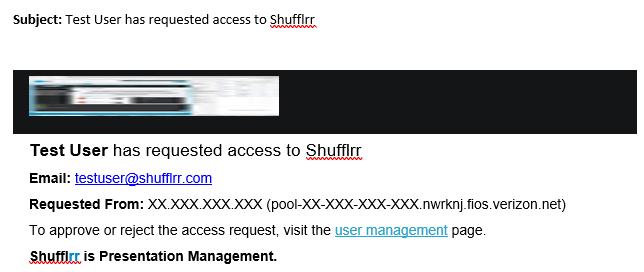
An email can only be associated to one account. If an existing email is sent in a failure response will be returned.
| Method type | POST |
| API Location | https://wwwapi.shufflrr.com/api/account/RequestAccess |
| Swagger documentation location | https://wwwapi.shufflrr.com/api/docs/ui/index#!/Account/Account_RequestAccess |
Sample Request Body
{
"emailAddress": "testuser@shufflrr.com",
"firstName": "Test",
"lastName": "User",
"password": "password"
}
Sample Successful Response
Response Code $$$$$$$$$$$$$$
200Response Body $$$$$$$$$$$$$
no contentSample Failure Response
Response Code $$$$$$$$$$$$$$
409Response Body $$$$$$$$$$$$$
no contentActionsQueue APIs
The Action Queue in Shufflrr is used for processing that generally takes a longer period of time and needs to be queued up for processing asynchronously. This is for items such as processing uploaded files, slide updating, applying permission changes to folders, etc.
Get Actions Queue
Actions Queue Dismiss
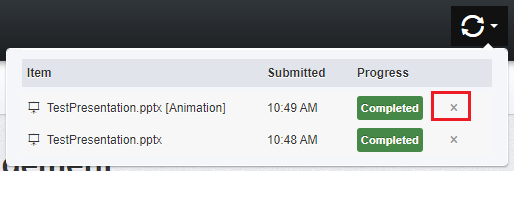
When an item is proceesed through the Actions Queue, the status of it will be shown in the Shufflrr UI for the user until the following day or the user decides to dismiss the message so from their queue display (by clicking on the x next to the record they no longer want seeing in the Actions Queue [refer to image below]). Use this API to dismiss the message for the user.
| Method type | POST |
| API Location | https://wwwapi.shufflrr.com/api/actionsqueue/Dismiss |
| Swagger documentation location | https://wwwapi.shufflrr.com/api/docs/ui/index#!/ActionsQueue/ActionsQueue_Dismiss |
Sample Request Body
{
"actionId": 0
}
Where 0 is the ID of the Actions Queue item to be dismissed
Sample Successful Response
0Sample Unsuccessful Response – No actionId sent
Value cannot be null.
Parameter name: target
Sample Unsuccessful Response – All other
{
"message": "Authorization has been denied for this request."
}
Builders APIs
Builders are a wizard that can be used to make To learn what a builder is, please refer to the |location_link|
Get All Builders
This API gets a list of all builders in the Shufflrr portal
| Method type | GET |
| API Location | https://wwwapi.shufflrr.com/api/builders |
| Swagger documentation location | https://wwwapi.shufflrr.com/api/docs/ui/index#!/Builders/Builders_Get |
Sample Response – 0 Builders
[]Create New Builder
This API allows you to add a new builder to the Shufflrr portal
| Method type | POST |
| API Location | https://wwwapi.shufflrr.com/api/builders |
| Swagger documentation location | https://wwwapi.shufflrr.com/api/docs/ui/index#!/Builders/Builders_Post |
Sample Request Body
{
"title": "BuilderTitle",
"loopingVideoId": 0,
"titleSlideId": 0,
"dataFields": [
 "string"
],
"accessPrincipalIds": [
 "00000000-0000-0000-0000-000000000000"
],
"slideLimit": 0
}
Where:
- title is the title of the builder
- loopingVideoId is the fileId of the Video to use for the looping video. If none, set to null.
- titleSlideIs is the ID of the slide to use as the first slide in each presentation created using the builder. It is added to the slide tray by default when a new presentation is being created using the builder. If you don't want to define one, set to null.
- dataFiles is a comma sperated list of dataFileds to define. If you do not want to define any then send in an empty array (ie []).
- accessPrincipalIds is a comma seperated list of IDs for users and groups to give access to the builder. If you do not want to define any then send in an empty array (ie []).
- slideLimit is the max number of slides to allow someone to add to their slide try using the builder. To set to unlimited, set value to 0.
Foundation Presentation(s) are not assigned in this call. They are added in a subsequent call to either the Add or Update Presentations to a Builder API (below)
Sample Successful Response
{
"id":0000,
"title":"BuilderTitle",
"loopingVideoId":00000000,
"loopingVideo":null,
"titleSlideId":00000000,
"titleSlide":null,
"access":[{"groupType":"AllUsers","description":"Contains every user on the site","principalType":"Group","id":"00000000-0000-0000-0000-000000000000","name":"All Users","createdDate":"2020-08-14T14:52:51.177","roles":"CreateNewPPTX, Upload, DownloadPresentationOriginal, DownloadPresentationPPSX, DownloadPresentationPDF, DownloadPresentationPDFNotes, DownloadImageOriginal, DownloadImageJPG, DownloadVideoOriginal, DownloadVideoH264, DownloadDocumentOriginal, DownloadDocumentPDF, FileSharing","portalId":0000000,"deleted":false}],
"slideLimit":0,
"dataFields":[],
"presentations":[]
}
Sample Unsuccessful Response
{
"message": "An error has occurred."
}
Delete a Builder
This API allows you to delete a builder from the Shufflrr portal
| Method type | DELETE |
| API Location | https://wwwapi.shufflrr.com/api/builders/{id} |
| Swagger documentation location | https://wwwapi.shufflrr.com/api/docs/ui/index#!/Builders/Builders_Delete |
Where {id} in the above API Location is the Builder ID to be deleted
Sample Successful Response
Status Code $$$$$$$$$$$$
204 (No Content)
Sample Unsuccessful Response
Status Code $$$$$$$$$$$$
403 (Forbidden)
Response Body $$$$$$$$$$$$$$
Attempted to perform an unauthorized operation.Get Builder Details
This API allows you to retrieve the details of a specific builder from the Shufflrr portal
| Method type | GET |
| API Location | https://wwwapi.shufflrr.com/api/builders/{id} |
| Swagger documentation location | https://wwwapi.shufflrr.com/api/docs/ui/index#!/Builders/Builders_Get_0 |
Where {id} in the above API Location is the ID of the Builder to be deleted
Sample Successful Response
{
"loopingVideo":null,
"titleSlide":{"id":00000000,"baseFileId":00000000,"baseSlideNumber":1,"slideType":"Presentation","createdDate":"2020-10-13T13:42:33.77","modifiedDate":"2020-10-13T13:42:33.77","slideHistoryId":0000000,"version":1,"thumbnailSmallSize":0000,"thumbnailMediumSize":00000,"thumbnailLargeSize":000000,"apiUrl":"https://wwwapi.shufflrr.com/api/slides/00000000","thumbnailSmallUrl":"https://wwwapi.shufflrr.com/api/slides/00000000/thumbnailsmall","thumbnailMediumUrl":"https://wwwapi.shufflrr.com/api/slides/00000000/thumbnailmedium","thumbnailLargeUrl":"https://wwwapi.shufflrr.com/api/slides/00000000/thumbnaillarge","commentCount":0,"likeCount":0,"isLikedByCurrentUser":false,"isFollowedByCurrentUser":false,"likedBy":[],"title":"","notes":""},
"access":[{"groupType":"AllUsers","description":"Contains every user on the site","principalType":"Group","id":"00000000-0000-0000-0000-000000000000","name":"All Users","createdDate":"2020-08-14T14:52:51.177","roles":"CreateNewPPTX, Upload, DownloadPresentationOriginal, DownloadPresentationPPSX, DownloadPresentationPDF, DownloadPresentationPDFNotes, DownloadImageOriginal, DownloadImageJPG, DownloadVideoOriginal, DownloadVideoH264, DownloadDocumentOriginal, DownloadDocumentPDF, FileSharing","portalId":0000000,"deleted":false}],
"id":0000,
"title":"Test Builder",
"loopingVideoId":null,
"titleSlideId":00000000,
"slideLimit":0,
"dataFields":["hi","hello","blue"],
"presentations":[{"file":{"slide":{"createdDate":"2020-10-13T13:42:33.24","modifiedDate":"2021-02-02T14:54:20.967","isLikedByCurrentUser":false,"isFollowedByCurrentUser":true,"likedBy":[],"title":"my test presentation","notes":null,"baseSlideNumber":1,"slideType":"File","fileSlideType":"Presentation","thumbnailSmallSize":0000,"thumbnailMediumSize":00000,"thumbnailLargeSize":000000,"id":00000000,"baseFileId":00000000,"slideHistoryId":0000000,"version":1,"apiUrl":"https://wwwapi.shufflrr.com/api/slides/00000000","thumbnailSmallUrl":"https://wwwapi.shufflrr.com/api/slides/00000000/thumbnailsmall","thumbnailMediumUrl":"https://wwwapi.shufflrr.com/api/slides/00000000/thumbnailmedium","thumbnailLargeUrl":"https://wwwapi.shufflrr.com/api/slides/00000000/thumbnaillarge","commentCount":0,"likeCount":0},"slideMaster":null,"slideMasterId":null,"slideCount":4,"fileType":"Presentation","apiUrl":"https://wwwapi.shufflrr.com/api/presentations/00000000","downloadUrl":"https://wwwapi.shufflrr.com/api/presentations/00000000/download","pdfSize":2042199,"pdfEmbedUrl":"https://wwwapi.shufflrr.com/api/presentations/00000000/pdf","pdfDownloadUrl":"https://wwwapi.shufflrr.com/api/presentations/00000000/pdf?download=true","pdfNotesSize":1421649,"pdfNotesEmbedUrl":"https://wwwapi.shufflrr.com/api/presentations/00000000/pdfnotes","pdfNotesDownloadUrl":"https://wwwapi.shufflrr.com/api/presentations/00000000/pdfnotes?download=true","html5Url":"https://wwwapi.shufflrr.com/api/presentations/00000000/html/index.html","html5Processed":"EditorProcessed","ppsxSize":2485261,"ppsxDownloadUrl":"https://wwwapi.shufflrr.com/api/presentations/00000000/ppsx?download=true","reviewSlideUpdates":false,"reviewChildSlideUpdates":false,"replacementValues":null,"editSessionId":null,"author":"","size":2485111,"extension":"pptx","fileCreatedDate":"2020-10-13T13:41:30.247","fileModifiedDate":"2020-10-13T13:41:38.78","expiryDate":null,"fileHistoryId":000000,"version":1,"isCurrentVersion":false,"commentCount":0,"likeCount":0,"isLikedByCurrentUser":false,"isFollowedByCurrentUser":true,"metadata":[{"metadataTypeId":0000,"value":""},{"metadataTypeId":0001,"value":""},{"metadataTypeId":0002,"value":["","value1","value2"]},{"metadataTypeId":0003,"value":""},{"metadataTypeId":0004,"value":""},{"metadataTypeId":0005,"value":["","one"]},{"metadataTypeId":0006,"value":["","Value3","Value4"]}],"likedBy":[],"slideId":00000000,"processingStatus":"Processed","thumbnailSmallUrl":"https://wwwapi.shufflrr.com/api/presentations/00000000/thumbnailsmall","thumbnailMediumUrl":"https://wwwapi.shufflrr.com/api/presentations/00000000/thumbnailmedium","thumbnailLargeUrl":"https://wwwapi.shufflrr.com/api/presentations/00000000/thumbnaillarge","thumbnailSmallDownloadUrl":"https://wwwapi.shufflrr.com/api/presentations/00000000/thumbnailsmall?download=true","thumbnailMediumDownloadUrl":"https://wwwapi.shufflrr.com/api/presentations/00000000/thumbnailmedium?download=true","thumbnailLargeDownloadUrl":"https://wwwapi.shufflrr.com/api/presentations/00000000/thumbnaillarge?download=true","thumbnailSmallSize":6892,"thumbnailMediumSize":23279,"thumbnailLargeSize":168581,"embedUrl":"https://wwwapi.shufflrr.com/api/presentations/00000000/embed","id":00000000,"name":"my test presentation.pptx","description":null,"createdDate":"2020-10-13T13:42:33.24","modifiedDate":"2021-02-02T14:54:20.967","createdById":"00000000-0000-0000-0000-000000000000","createdByName":"wwwapi Admin","modifiedById":"00000000-0000-0000-0000-000000000000","modifiedByName":"wwwapi Admin","parentFolderId":00000000,"portalId":0000000,"isFolder":false,"deleted":true}, "id":00000, "builderId":0000,  "fileId":00000000, "parentBuilderPresentationId":null, "presentations":[], "insertBeforeSlideNumber":-1}]
}
Sample Unsuccessful Response
Status Code $$$$$$$$$$$$
403 (Forbidden)
Response Body $$$$$$$$$$$$$$
Attempted to perform an unauthorized operation.Update Builder Details
This API allows you to update the details of a specific builder in the Shufflrr portal
| Method type | PUT |
| API Location | https://wwwapi.shufflrr.com/api/builders/{id} |
| Swagger documentation location | https://wwwapi.shufflrr.com/api/docs/ui/index#!/Builders/Builders_Put |
Where {id} in the above API Location is the ID of the Builder to be updated
Sample Request Body
{
"title": "BuilderTitle",
"loopingVideoId": 0,
"titleSlideId": 0,
"dataFields": [
 "string"
],
"accessPrincipalIds": [
 "00000000-0000-0000-0000-000000000000"
],
"slideLimit": 0
}
Where:
- title is the title of the builder
- loopingVideoId is the fileId of the Video to use for the looping video. If none, set to null.
- titleSlideIs is the ID of the slide to use as the first slide in each presentation created using the builder. It is added to the slide tray by default when a new presentation is being created using the builder. If you don't want to define one, set to null.
- dataFiles is a comma sperated list of dataFileds to define. If you do not want to define any then send in an empty array (ie []).
- accessPrincipalIds is a comma seperated list of IDs for users and groups to give access to the builder. If you do not want to define any then send in an empty array (ie []).
- slideLimit is the max number of slides to allow someone to add to their slide try using the builder. To set to unlimited, set value to 0.
Foundation Presentation(s) are not assigned in this call. They are added in a subsequent call to either the Add or Update Presentations to a Builder API (below)
Sample Successful Response
{
"loopingVideo":null,
"titleSlide":{"id":00000000,"baseFileId":00000000,"baseSlideNumber":1,"slideType":"Presentation","createdDate":"2020-10-13T13:42:33.77","modifiedDate":"2020-10-13T13:42:33.77","slideHistoryId":0000000,"version":1,"thumbnailSmallSize":0000,"thumbnailMediumSize":00000,"thumbnailLargeSize":000000,"apiUrl":"https://wwwapi.shufflrr.com/api/slides/00000000","thumbnailSmallUrl":"https://wwwapi.shufflrr.com/api/slides/00000000/thumbnailsmall","thumbnailMediumUrl":"https://wwwapi.shufflrr.com/api/slides/00000000/thumbnailmedium","thumbnailLargeUrl":"https://wwwapi.shufflrr.com/api/slides/00000000/thumbnaillarge","commentCount":0,"likeCount":0,"isLikedByCurrentUser":false,"isFollowedByCurrentUser":false,"likedBy":[],"title":"","notes":""},
"access":[{"groupType":"AllUsers","description":"Contains every user on the site","principalType":"Group","id":"00000000-0000-0000-0000-000000000000","name":"All Users","createdDate":"2020-08-14T14:52:51.177","roles":"CreateNewPPTX, Upload, DownloadPresentationOriginal, DownloadPresentationPPSX, DownloadPresentationPDF, DownloadPresentationPDFNotes, DownloadImageOriginal, DownloadImageJPG, DownloadVideoOriginal, DownloadVideoH264, DownloadDocumentOriginal, DownloadDocumentPDF, FileSharing","portalId":0000000,"deleted":false}],
"id":0000,
"title":"Test Builder",
"loopingVideoId":null,
"titleSlideId":00000000,
"slideLimit":0,
"dataFields":["hi","hello","blue"],
"presentations":[{"file":{"slide":{"createdDate":"2020-10-13T13:42:33.24","modifiedDate":"2021-02-02T14:54:20.967","isLikedByCurrentUser":false,"isFollowedByCurrentUser":true,"likedBy":[],"title":"my test presentation","notes":null,"baseSlideNumber":1,"slideType":"File","fileSlideType":"Presentation","thumbnailSmallSize":0000,"thumbnailMediumSize":00000,"thumbnailLargeSize":000000,"id":00000000,"baseFileId":00000000,"slideHistoryId":0000000,"version":1,"apiUrl":"https://wwwapi.shufflrr.com/api/slides/00000000","thumbnailSmallUrl":"https://wwwapi.shufflrr.com/api/slides/00000000/thumbnailsmall","thumbnailMediumUrl":"https://wwwapi.shufflrr.com/api/slides/00000000/thumbnailmedium","thumbnailLargeUrl":"https://wwwapi.shufflrr.com/api/slides/00000000/thumbnaillarge","commentCount":0,"likeCount":0},"slideMaster":null,"slideMasterId":null,"slideCount":4,"fileType":"Presentation","apiUrl":"https://wwwapi.shufflrr.com/api/presentations/00000000","downloadUrl":"https://wwwapi.shufflrr.com/api/presentations/00000000/download","pdfSize":2042199,"pdfEmbedUrl":"https://wwwapi.shufflrr.com/api/presentations/00000000/pdf","pdfDownloadUrl":"https://wwwapi.shufflrr.com/api/presentations/00000000/pdf?download=true","pdfNotesSize":1421649,"pdfNotesEmbedUrl":"https://wwwapi.shufflrr.com/api/presentations/00000000/pdfnotes","pdfNotesDownloadUrl":"https://wwwapi.shufflrr.com/api/presentations/00000000/pdfnotes?download=true","html5Url":"https://wwwapi.shufflrr.com/api/presentations/00000000/html/index.html","html5Processed":"EditorProcessed","ppsxSize":2485261,"ppsxDownloadUrl":"https://wwwapi.shufflrr.com/api/presentations/00000000/ppsx?download=true","reviewSlideUpdates":false,"reviewChildSlideUpdates":false,"replacementValues":null,"editSessionId":null,"author":"","size":2485111,"extension":"pptx","fileCreatedDate":"2020-10-13T13:41:30.247","fileModifiedDate":"2020-10-13T13:41:38.78","expiryDate":null,"fileHistoryId":000000,"version":1,"isCurrentVersion":false,"commentCount":0,"likeCount":0,"isLikedByCurrentUser":false,"isFollowedByCurrentUser":true,"metadata":[{"metadataTypeId":0000,"value":""},{"metadataTypeId":0001,"value":""},{"metadataTypeId":0002,"value":["","value1","value2"]},{"metadataTypeId":0003,"value":""},{"metadataTypeId":0004,"value":""},{"metadataTypeId":0005,"value":["","one"]},{"metadataTypeId":0006,"value":["","Value3","Value4"]}],"likedBy":[],"slideId":00000000,"processingStatus":"Processed","thumbnailSmallUrl":"https://wwwapi.shufflrr.com/api/presentations/00000000/thumbnailsmall","thumbnailMediumUrl":"https://wwwapi.shufflrr.com/api/presentations/00000000/thumbnailmedium","thumbnailLargeUrl":"https://wwwapi.shufflrr.com/api/presentations/00000000/thumbnaillarge","thumbnailSmallDownloadUrl":"https://wwwapi.shufflrr.com/api/presentations/00000000/thumbnailsmall?download=true","thumbnailMediumDownloadUrl":"https://wwwapi.shufflrr.com/api/presentations/00000000/thumbnailmedium?download=true","thumbnailLargeDownloadUrl":"https://wwwapi.shufflrr.com/api/presentations/00000000/thumbnaillarge?download=true","thumbnailSmallSize":6892,"thumbnailMediumSize":23279,"thumbnailLargeSize":168581,"embedUrl":"https://wwwapi.shufflrr.com/api/presentations/00000000/embed","id":00000000,"name":"my test presentation.pptx","description":null,"createdDate":"2020-10-13T13:42:33.24","modifiedDate":"2021-02-02T14:54:20.967","createdById":"00000000-0000-0000-0000-000000000000","createdByName":"wwwapi Admin","modifiedById":"00000000-0000-0000-0000-000000000000","modifiedByName":"wwwapi Admin","parentFolderId":00000000,"portalId":0000000,"isFolder":false,"deleted":true}, "id":00000, "builderId":0000,  "fileId":00000000, "parentBuilderPresentationId":null, "presentations":[], "insertBeforeSlideNumber":-1}]
}
Sample Unsuccessful Response
Response Code $$$$$$$$$$$$$
403 (Forbidden)
Response Body $$$$$$$$$$$$$$
Attempted to perform an unauthorized operation.Add foundation Presentation(s) to Builder
This API allows you to add one or more foundation presenation(s) to a specific builder in the Shufflrr portal
| Method type | POST |
| API Location | https://wwwapi.shufflrr.com/api/builders/{id}/presentations |
| Swagger documentation location | https://wwwapi.shufflrr.com/api/docs/ui/index#!/Builders/Builders_Presentations |
Where {id} in the above API Location is the ID of the Builder to add the foundation presentation(s) to
If you want to delete all previously added foundation presentations from a builder before adding in the new presentations, append the query parameter ?removeExisting=true to the end of the API URL. This is set to False by default.
Sample Request Body
[
{"fileId":00000000,"presentations":[],"insertBeforeSlideNumber":-1},
{"fileId":00000001,"presentations":[],"insertBeforeSlideNumber":-1}
]
Where:
- fileId is the file you are adding
- presentations is a comma seperated list of founder presentations you want to add this file as a child presentation to. To have this file be a root foundation presentation (not a child) then send an empty array (ie. [])
- insertBeforeSlideNumber is only used when presentations is not empty. This is the slide Number of the parent presentation that you want the file being added to get added before when it is added to the slide tray (when someone is building the presentation using this builder).
Sample Successful Response
[
{"id":00000,"builderId":0000,"fileId":00000000,"file":{"slide":{"createdDate":"2020-12-04T14:46:15.933","modifiedDate":"2020-12-04T14:46:17.12","isLikedByCurrentUser":false,"isFollowedByCurrentUser":true,"likedBy":[],"title":"abc-icon","notes":null,"baseSlideNumber":1,"slideType":"File","fileSlideType":"Image","thumbnailSmallSize":10188,"thumbnailMediumSize":22964,"thumbnailLargeSize":96369,"id":00000000,"baseFileId":00000000,"slideHistoryId":0000000,"version":1,"apiUrl":"https://wwwapi.shufflrr.com/api/slides/00000000","thumbnailSmallUrl":"https://wwwapi.shufflrr.com/api/slides/00000000/thumbnailsmall","thumbnailMediumUrl":"https://wwwapi.shufflrr.com/api/slides/00000000/thumbnailmedium","thumbnailLargeUrl":"https://wwwapi.shufflrr.com/api/slides/00000000/thumbnaillarge","commentCount":0,"likeCount":0},"width":1128,"height":1128,"fileType":"Image","apiUrl":"https://wwwapi.shufflrr.com/api/files/00000000","author":null,"size":60296,"extension":"png","fileCreatedDate":"2020-12-04T14:46:13.32","fileModifiedDate":"2020-12-04T14:46:13.323","expiryDate":null,"fileHistoryId":000000,"version":1,"isCurrentVersion":true,"commentCount":0,"likeCount":0,"isLikedByCurrentUser":false,"isFollowedByCurrentUser":true,"metadata":[{"metadataTypeId":0000,"value":""},{"metadataTypeId":0001,"value":""},{"metadataTypeId":0002,"value":["","Value1","Value2"]},{"metadataTypeId":003,"value":""},{"metadataTypeId":0004,"value":""},{"metadataTypeId":0005,"value":["","one"]},{"metadataTypeId":0006,"value":["","Value3","Value4"]}],"likedBy":[],"slideId":00000000,"processingStatus":"Processed","thumbnailSmallUrl":"https://wwwapi.shufflrr.com/api/files/00000000/thumbnailsmall","thumbnailMediumUrl":"https://wwwapi.shufflrr.com/api/files/00000000/thumbnailmedium","thumbnailLargeUrl":"https://wwwapi.shufflrr.com/api/files/00000000/thumbnaillarge","thumbnailSmallDownloadUrl":"https://wwwapi.shufflrr.com/api/files/00000000/thumbnailsmall?download=true","thumbnailMediumDownloadUrl":"https://wwwapi.shufflrr.com/api/files/00000000/thumbnailmedium?download=true","thumbnailLargeDownloadUrl":"https://wwwapi.shufflrr.com/api/files/00000000/thumbnaillarge?download=true","thumbnailSmallSize":10188,"thumbnailMediumSize":22964,"thumbnailLargeSize":96369,"downloadUrl":"https://wwwapi.shufflrr.com/api/files/00000000/download","embedUrl":"https://wwwapi.shufflrr.com/api/files/00000000/embed","id":00000000,"name":"abc-icon.png","description":null,"createdDate":"2020-12-04T14:46:15.933","modifiedDate":"2020-12-04T14:46:17.12","createdById":"00000000-0000-0000-0000-000000000000","createdByName":"wwwapi Admin","modifiedById":"00000000-0000-0000-0000-000000000000","modifiedByName":"wwwapi Admin","parentFolderId":00000000,"portalId":0000000,"isFolder":false,"deleted":false},"parentBuilderPresentationId":null,"presentations":[],"insertBeforeSlideNumber":-1},
{"id":00000,"builderId":0000,"fileId":00000000,"file":{"slide":{"createdDate":"2020-12-01T16:05:58.877","modifiedDate":"2020-12-01T16:06:00.253","isLikedByCurrentUser":false,"isFollowedByCurrentUser":true,"likedBy":[],"title":"Christmas 2019-1","notes":null,"baseSlideNumber":1,"slideType":"File","fileSlideType":"Image","thumbnailSmallSize":16715,"thumbnailMediumSize":52458,"thumbnailLargeSize":307648,"id":00000000,"baseFileId":00000000,"slideHistoryId":0000000,"version":1,"apiUrl":"https://wwwapi.shufflrr.com/api/slides/00000000","thumbnailSmallUrl":"https://wwwapi.shufflrr.com/api/slides/00000000/thumbnailsmall","thumbnailMediumUrl":"https://wwwapi.shufflrr.com/api/slides/00000000/thumbnailmedium","thumbnailLargeUrl":"https://wwwapi.shufflrr.com/api/slides/00000000/thumbnaillarge","commentCount":0,"likeCount":0},"width":2592,"height":1944,"fileType":"Image","apiUrl":"https://wwwapi.shufflrr.com/api/files/00000000","author":null,"size":2189686,"extension":"JPG","fileCreatedDate":"2020-12-01T16:05:53.197","fileModifiedDate":"2020-12-01T16:05:53.66","expiryDate":null,"fileHistoryId":000000,"version":1,"isCurrentVersion":true,"commentCount":0,"likeCount":0,"isLikedByCurrentUser":false,"isFollowedByCurrentUser":true,"metadata":[{"metadataTypeId":0000,"value":""},{"metadataTypeId":0001,"value":""},{"metadataTypeId":0002,"value":["","Value1","Value2"]},{"metadataTypeId":003,"value":""},{"metadataTypeId":004,"value":""},{"metadataTypeId":0005,"value":["","one"]},{"metadataTypeId":0006,"value":["","Value3","Value4"]}],"likedBy":[],"slideId":00000000,"processingStatus":"Processed","thumbnailSmallUrl":"https://wwwapi.shufflrr.com/api/files/00000000/thumbnailsmall","thumbnailMediumUrl":"https://wwwapi.shufflrr.com/api/files/00000000/thumbnailmedium","thumbnailLargeUrl":"https://wwwapi.shufflrr.com/api/files/00000000/thumbnaillarge","thumbnailSmallDownloadUrl":"https://wwwapi.shufflrr.com/api/files/00000000/thumbnailsmall?download=true","thumbnailMediumDownloadUrl":"https://wwwapi.shufflrr.com/api/files/00000000/thumbnailmedium?download=true","thumbnailLargeDownloadUrl":"https://wwwapi.shufflrr.com/api/files/00000000/thumbnaillarge?download=true","thumbnailSmallSize":16715,"thumbnailMediumSize":52458,"thumbnailLargeSize":307648,"downloadUrl":"https://wwwapi.shufflrr.com/api/files/00000000/download","embedUrl":"https://wwwapi.shufflrr.com/api/files/00000000/embed","id":00000000,"name":"Christmas 2019-1.JPG","description":null,"createdDate":"2020-12-01T16:05:58.877","modifiedDate":"2020-12-01T16:06:00.253","createdById":"00000000-0000-0000-0000-000000000000","createdByName":"wwwapi Admin","modifiedById":"00000000-0000-0000-0000-000000000000","modifiedByName":"wwwapi Admin","parentFolderId":000000000,"portalId":0000000,"isFolder":false,"deleted":false},"parentBuilderPresentationId":null,"presentations":[],"insertBeforeSlideNumber":-1}
]
Sample Unsuccessful Response
Response Code $$$$$$$$$$$$$
403 (Forbidden)
Response Body $$$$$$$$$$$$$$
Attempted to perform an unauthorized operation.Remove foundation Presentation(s) from Builder
This API allows you to remove a foundation presenation from a specific builder in the Shufflrr portal
| Method type | DELETE |
| API Location | https://wwwapi.shufflrr.com/api/builders/presentations/{id} |
| Swagger documentation location | https://wwwapi.shufflrr.com/api/docs/ui/index#!/Builders/Builders_Presentations_0 |
Where {id} in the above API Location is the ID of foundation presentation that was previously added to a builder. This is the id element of the specific presentations element when retrieving a builder element.
Sample Successful Response
Response Code $$$$$$$$$$$$$
204 (No Content)
Sample Unsuccessful Response
Response Code $$$$$$$$$$$$$
400 (Bad Request)
Response Body $$$$$$$$$$$$$$
Invalid Builder PresentationId 0000Where 0000 is the builder presentation ID sent in the URL
Update foundation Presentation(s) location in Builder
This API allows you to update the location of a child foundation presenation in a specific builder in the Shufflrr portal. When the child presentation is linked to a parent founder presentation, the user will not be allowed to change the location of the slides of the child presentation if they choose to add them to the slide tray.
| Method type | PUT |
| API Location | https://wwwapi.shufflrr.com/api/builders/presentations/{id} |
| Swagger documentation location | https://wwwapi.shufflrr.com/api/docs/ui/index#!/Builders/Builders_Presentations_0_1 |
Where {id} in the above API Location is the ID of foundation presentation that was previously added to a builder as a child to another foundation presentation. This is the id element of the specific presentations element when retrieving a builder element and will have the element parentBuilderPresentationId not set to null.
This will link the file (to be specified in the request body) to the foundation presentation (specified as the {id} in the URL) and will allow the user using the builder to add the additional file to the slide tray at the location specified (in the request body).
Sample Request Body
{
"id": 0,
"insertBeforeSlideNumber": 0
}
Where:
- id is the ID of the child Foundation Presentation (same as specified in the URL)
- insertBeforeSlideNumber is the slide number in the Builder Foundation Presentation that you want the contents of this presentation added to the tray in front of.
Sample Successful Response
{
"id": 0,
"builderId": 0,
"fileId": 0,
"file": {
 "author": "string",
 "size": 0,
 "extension": "string",
 "fileCreatedDate": "2021-01-30T19:15:50.321Z",
 "fileModifiedDate": "2021-01-30T19:15:50.321Z",
 "expiryDate": "2021-01-30T19:15:50.321Z",
 "fileHistoryId": 0,
 "version": 0,
 "isCurrentVersion": true,
 "commentCount": 0,
 "likeCount": 0,
 "isLikedByCurrentUser": true,
 "isFollowedByCurrentUser": true,
 "metadata": [
   {
     "metadataTypeId": 0,
     "value": {}
   }
 ],
 "likedBy": [
   "string"
 ],
 "slideId": 0,
 "slide": {
   "createdDate": "2021-01-30T19:15:50.321Z",
   "modifiedDate": "2021-01-30T19:15:50.321Z",
   "isLikedByCurrentUser": true,
   "isFollowedByCurrentUser": true,
   "likedBy": [
     "string"
   ],
   "title": "string",
   "notes": "string",
   "baseSlideNumber": 0,
   "slideType": "Presentation",
   "fileSlideType": "Presentation",
   "thumbnailSmallSize": 0,
   "thumbnailMediumSize": 0,
   "thumbnailLargeSize": 0,
   "id": 0,
   "baseFileId": 0,
   "slideHistoryId": 0,
   "version": 0,
   "apiUrl": "string",
   "thumbnailSmallUrl": "string",
   "thumbnailMediumUrl": "string",
   "thumbnailLargeUrl": "string",
   "commentCount": 0,
   "likeCount": 0
 },
 "fileType": "Presentation",
 "processingStatus": "WaitingForProcessing",
 "apiUrl": "string",
 "thumbnailSmallUrl": "string",
 "thumbnailMediumUrl": "string",
 "thumbnailLargeUrl": "string",
 "thumbnailSmallDownloadUrl": "string",
 "thumbnailMediumDownloadUrl": "string",
 "thumbnailLargeDownloadUrl": "string",
 "thumbnailSmallSize": 0,
 "thumbnailMediumSize": 0,
 "thumbnailLargeSize": 0,
 "downloadUrl": "string",
 "embedUrl": "string",
 "id": 0,
 "name": "string",
 "description": "string",
 "createdDate": "2021-01-30T19:15:50.321Z",
 "modifiedDate": "2021-01-30T19:15:50.321Z",
 "createdById": "00000000-0000-0000-0000-000000000000",
 "createdByName": "string",
 "modifiedById": "00000000-0000-0000-0000-000000000000",
 "modifiedByName": "string",
 "parentFolderId": 0,
 "portalId": 0,
 "isFolder": true,
 "deleted": true
},
"parentBuilderPresentationId": 0,
"presentations": [
 {}
],
"insertBeforeSlideNumber": -1
}
Sample Unsuccessful Response – Builder Foundation PresentationId not found
Response Code $$$$$$$$$$$$$
400 (Bad Request)
Response Body $$$$$$$$$$$$$$
Invalid Builder PresentationId 0000Where 0000 is the builder presentation ID sent in the URL
Sample Unsuccessful Response – Attempting to act on root Builder Foundation PresentationId
Response Code $$$$$$$$$$$$$
400 (Bad Request)
Response Body $$$$$$$$$$$$$$
Root Builder Presentations can only be added or removedReporting APIs
Use the reporting APIs from Shufflrr to pull statistics and information from your Shufflrr portal.
Below is a listing of each reporting API along with the Inputs and Outputs for each along with a description of the meaning of each field
File
This Reporting API returns information on files in your Shufflrr portal
Inputs
| Parameter | Data Type | Required? | Meaning | Notes |
|---|---|---|---|---|
| CreatedById | Guid | No | Use to filter by the user ID of the user that created the files | |
| StartCreatedDate | DateTime | No | Use to filter files created after this date | |
| EndCreatedDate | DateTime | No | Use to filter files created before this date | |
| ParentFolderId | Int | No | Use to filter files that are inside of a specific folder | This will not return files that are in subfolders of the specified folder |
| SlideId | Int | No | Use to filter to the file that contains the specific Slide | |
| FileId | Int | No | Use to filter to the file specified | |
| $skip | Int | No | Use this to skip over the specified number of results | This is used to allow for pagination |
| $top | Int | No | Use this to limit the number of results to return at once | This is used to allow for pagintation |
| $inlinecount | String | No | Use this to include a count of the total results | Use the values 'allpages' to get the count or 'none' (or don't send the parameter) to not return the count |
| $orderby | String | No | Use this to specify the filed name to order by and the direction (desc or asc) to order in | Separate the field name and the direction with '%20' |
| Example: | ||||
| CreatedDate%20desc |
Outputs
| Field | Data Type | Meaning | Notes |
|---|---|---|---|
| Id | Int | This is the ID of the file | |
| Name | String | This is the Name of the file | |
| FileType | FileType | This is the Type of File | The possilbe values are: |
| – Document | |||
| – Image | |||
| – Video | |||
| – Presentation | |||
| ParentFolderId | Int | This is the ID of the folder that the file is in | |
| FolderName | String | This is the name of the folder that the file is in | |
| FolderPath | String | This is the path to the folder that the file is in | |
| CreatedById | Guid | This is the ID of the user that created the file | |
| CreatedByName | String | This is the Name of the user that created the file | |
| CreatedDate | DateTime | This is the Date the file was created on | |
| Size | Long | This is the size of the file in bytes | |
| DownloadCount | Int | This is the number of times the file has been downloaded | This is counting downloading from inside Shufflrr, not from Shares |
| ViewCount | Int | This is the number of tiems the file has been viewed | This is counting views inside Shufflrr, not from shares |
| LikeCount | Int | This is the number of times that the file has been liked | |
| CommentCount | Int | This is the number of comments on the fie | |
| ShareCount | Int | This is the number of shares that have been created for the file | This is the number of share links created, not the number of times someone has accessed the share link |
| CreatedInShufflrr | Boolean | This is if the file was created inside of Shufflrr or if it was uploaded to Shufflrr | True indicates it was created Shufflrr |
| False indicates it was created outside of Shufflr and was uploaded |
User
This Reporting API returns information on the users in your Shufflrr portal
Inputs
| Parameter | Data Type | Required? | Meaning | Notes |
|---|---|---|---|---|
| StartCreatedDate | DateTime | No | Use to filter users that joined the portal after this date | |
| EndCreatedDate | DateTime | No | Use to filter users that joined the portal before this date | |
| StartLastAccessDate | DateTime | No | Use to filter users that last accessed the portal after this date | |
| EndLastAccessDate | DateTime | No | Use to filter users that last accessed the portal before this date | |
| UserId | Guid | No | Use this to return informaiton on a specific user | |
| GroupId | Guid | No | Use this to return the users that are members of a specific group | |
| $skip | Int | No | Use this to skip over the specified number of results | This is used to allow for pagination |
| $top | Int | No | Use this to limit the number of results to return at once | This is used to allow for pagintation |
| $inlinecount | String | No | Use this to include a count of the total results | Use the values 'allpages' to get the count or 'none' (or don't send the parameter) to not return the count |
| $orderby | String | No | Use this to specify the filed name to order by and the direction (desc or asc) to order in | Separate the field name and the direction with '%20' |
| Example: | ||||
| Name%20desc |
Outputs
| Field | Data Type | Meaning | Notes |
|---|---|---|---|
| Id | Guid | This is the Id of the user | |
| Name | String | This is the Name of the user | Format is FirstName LastName |
| EmailAddress | String | This is the email address of the user | |
| Groups | String | This is a comma seperated list of Group Names that the user in | |
| CreatedDate | DateTime | This is the date that the user joined the portal | |
| LastAccessDate | DateTime | This is the last time that the user performed an action in the portal | |
| DownloadCount | Int | This is the number of files that the user downloaded | This is total downloads, not unique file downloads |
| ViewCount | Int | This is the number of file views for the user | This is total views not unique file views |
| LikeCount | Int | This is the total number of times the user has liked files | This will only show Likes. Likes that have been undone are not in this number |
| CommentCount | Int | This is the total number of comments that the user has made | Deleting a comment will not remove it from this count |
| ShareCount | Int | This is the total number of shares that the user has created | |
| FileUploadCount | Int | This is the total number of files the user has uploaded | |
| PresentationsCreatedCount | Int | This is the total number of presentations that the user has created | |
| SlidesUsedCount | Int | This is the total number of slides that the user has used in their presentations | This is total slides used not unique number of slides used |
| RepeatSlidesUsedCount | Int | This is the number of times that a user has used the same slide more than once in building their presentations |
Slide
This Reporting API returns information on the slides your Shufflrr portal
Inputs
| Parameter | Data Type | Required? | Meaning | Notes |
|---|---|---|---|---|
| CreatedById | Guid | No | Use this to filter the slides that are in presentations that were created by a specific user | |
| StartCreatedDate | DateTime | No | Use to filter slides that were created after this date | |
| EndCreatedDate | DateTime | No | Use to filter slides that were created before this date | |
| PresentationId | Int | No | Use this to filter the slides by a specific presentation | |
| SlideId | Int | No | Use this to filter by a specific slide | |
| UsedById | Guid | No | Use this to filter by a specific user using the slide | |
| $skip | Int | No | Use this to skip over the specified number of results | This is used to allow for pagination |
| $top | Int | No | Use this to limit the number of results to return at once | This is used to allow for pagintation |
| $inlinecount | String | No | Use this to include a count of the total results | Use the values 'allpages' to get the count or 'none' (or don't send the parameter) to not return the count |
| $orderby | String | No | Use this to specify the filed name to order by and the direction (desc or asc) to order in | Separate the field name and the direction with '%20' |
| Example: | ||||
| UsedById%20desc |
Outputs
| Field | Data Type | Meaning | Notes |
|---|---|---|---|
| Id | Int | This is the ID of the slide | This is the slide ID of the original slide from the original file |
| Title | String | This is the title of the slide | This is the title of the original slide from the original file |
| ThumbnailSmallUrl | String | This is thumbnail image of the slide | |
| ParentFolderId | Int | This is the folder that the file that contains this slide is in | This is the folder that the original file is in |
| ParentFolderName | String | This is the name of the folder the file is in | This is the folder that the original file is in |
| ParentFolderPath | String | This is the path to the folder the file is in | |
| CreatedById | Guid | This is the ID of the user that created the file the slide is in | This is the user that created the original file |
| CreatedByName | String | This is the name of the user that created the file that the slide is in | This is the user that created the original file |
| CreatedDate | DateTime | This is when the file was created | This is the create date for the original file that contains the slide |
| BaseFileId | Int | This is the ID of the file that the slide is in | This is the original file the slide is in |
| BaseFileType | FileType | This is the type of file | The possilbe values are: |
| – Document | |||
| – Image | |||
| – Video | |||
| – Presentation | |||
| BaseFileDeleted | Boolean | This is to signify if the original file that the slide is in has been deleted or not | |
| SlideNumber | Int | This is the slide number in the presentation | This is the slide number in the original file |
| ViewCount | Int | This is the number of times the slide has been viewed | This is the total number of times this slide has been viewed, cumultive from all presentations it has been added to |
| LikeCount | Int | This is the number of times the slide has been liked | This is the total number of times this slide has been liked, cumultive from all presentations it has been added to |
| CommentCount | Int | This is the total number of comments on the slide | This is the total number of times this slide has been commented on, cumultive from all presentations it has been added to |
| PresentationCount | Int | This is the total number of presenations that the slide is used in |
Activity
This Reporting API returns information on the activities from your Shufflrr portal
Inputs
| Parameter | Data Type | Required? | Meaning | Notes |
|---|---|---|---|---|
| FileId | Int | No | Use this to filter activities for a specific fie | |
| UserId | Guid | No | Use this to filter activities for a specific user | |
| StartDate | DateTime | No | Use this to filter activities that occurred after this date | |
| EndDate | DateTime | No | Use this to filter activities that occurred before this date | |
| SlideId | Int | No | Use this to filter activities for a specific slide | |
| Activity | ActivityType | No | Use this to filter for a specific activity | Accepted values: |
| – Login | ||||
| – CreatePresentation | ||||
| – UploadFile | ||||
| – SlideUpdate | ||||
| – DeleteFile | ||||
| – View | ||||
| – Like | ||||
| – Comment | ||||
| – RemoveComment | ||||
| – Download | ||||
| – AddUser | ||||
| – DeleteUser | ||||
| – AddUserToGroup | ||||
| – DeleteUserFromGroup | ||||
| – UploadFont | ||||
| – DeleteFont | ||||
| – ChangeGroupPermission | ||||
| – ChangeFolderPermission | ||||
| – Search | ||||
| – StartGallery | ||||
| – QuitGallery | ||||
| – StartLiveShare | ||||
| – StopLiveShare | ||||
| – PlayVideo | ||||
| – PauseVideo | ||||
| – SeekVideo | ||||
| – TagUpdate | ||||
| $skip | Int | No | Use this to skip over the specified number of results | This is used to allow for pagination |
| $top | Int | No | Use this to limit the number of results to return at once | This is used to allow for pagintation |
| $inlinecount | String | No | Use this to include a count of the total results | Use the values 'allpages' to get the count or 'none' (or don't send the parameter) to not return the count |
| $orderby | String | No | Use this to specify the filed name to order by and the direction (desc or asc) to order in | Separate the field name and the direction with '%20' |
| Example: | ||||
| Activity%20desc |
Outputs
| Field | Data Type | Meaning | Notes |
|---|---|---|---|
| FileId | Int | This is the ID of the file that the activity was performed on | When an activity is done on a slide, this will be the file ID of the original file the slide is from |
| PresentationId | Int | This is the ID of the Presentation (when a presentation) that the activity was performed on | When an activity is done on a slide, this will be the presentation ID of the original presentation the slide is from |
| SlideId | Int | This is the ID of the Slide that the activity was performed on | Activities on slides are reflected on the original slide in the original files |
| SlideNumber | Int | This is the slide Number of the sldie in the presentation | This is the number slide in the original presentation |
| FileName | String | This is the name of the file that the activity was perfomred on | When an activity is done on a slide, this will be the file name of the original file the slide is from |
| FileDeleted | Boolean | This is if the file was deleted or not | |
| SlideTitle | String | This is the title of the slide | This is the title of the slide in the original presentation |
| Text | String | This is a text field that for some activities will provide additional details on the activity | examples: |
| For activities regarding comments will provide the comment test that was acted upon | |||
| For login activities will provied How and from what IP/ISP the login occurred | |||
| For changes in permissions will show what permssions changed from and to | |||
| ParentFolderId | Int | This is the folder ID that the item the activity was performed on is contained in | When an activity is done on a slide, this will be the parent folder of the original file the slide is from |
| ParentFolderName | String | This is the folder Name that the item the activity was performed on is contained in | When an activity is done on a slide, this will be the parent folder of the original file the slide is from |
| ParentFolderPath | String | This is the path to the parent folder of the item the activity was performed on | When an activity is done on a slide, this will be the path to the parent folder of the original file the slide is from |
| UserId | Guid | This is the userId of the user the performed the activity | |
| UserName | String | This is the name of the user that performed the activity | |
| TargetId | String | This is the ID of the entity that a specific activity was performed for | Example: |
| – When change folder permissions this will show the person or group the permissions were changed for | |||
| – When Adding or removing a user to or from a group this will show the user being added or removed | |||
| – When adding or deleting a user this will specify the user added or deleted | |||
| TargetName | String | This is the Name of the entity that a specific activity was performed for | |
| GroupId | Guid | This is the ID fo the Group that was affected with the activity | This will only be present for activities that have to deal with activities affecting groups such as: |
| – Adding user to group | |||
| – Removing user from group | |||
| – Changing permissions allowed for a group | |||
| – Changing the permissions for group on a folder | |||
| GroupName | String | This is the Name of the group that was affected with the activity | |
| Date | DateTime | This is the Date the activity took place | |
| Activity | ActivityType | This is the Activity the activity took place | Possible values: |
| – Login | |||
| – CreatePresentation | |||
| – UploadFile | |||
| – SlideUpdate | |||
| – DeleteFile | |||
| – View | |||
| – Like | |||
| – Comment | |||
| – RemoveComment | |||
| – Download | |||
| – AddUser | |||
| – DeleteUser | |||
| – AddUserToGroup | |||
| – DeleteUserFromGroup | |||
| – UploadFont | |||
| – DeleteFont | |||
| – ChangeGroupPermission | |||
| – ChangeFolderPermission | |||
| – Search | |||
| – StartGallery | |||
| – QuitGallery | |||
| – StartLiveShare | |||
| – StopLiveShare | |||
| – PlayVideo | |||
| – PauseVideo | |||
| – SeekVideo | |||
| – TagUpdate | |||
| IpAddress | String | This is the system of the user that performed the activity | This is only captured when available |
| Hostname | String | This is the Name of the group that was affected with the activity | This is only captured when available |
| LiveShareToken | String | This is the token of the Present Live session | This is only available on items pertaining to Present Live: |
| – StartLiveShare | |||
| – EndLiveShare | |||
| ShareLinkId | Int | This is ID of a share that was created for a file(s) | |
| ShareName | String | This is the name(s) of the file(s) that was(were) shared | |
| SessionId | String | This is the session ID of the user joining in a presentation or viewing a file from a share (may not be a registered user of the system) | The activites that have session IDs are: |
| – View | |||
| – StartGallery | |||
| – QuitGallery | |||
| – StartLiveShare | |||
| – StopLiveShare |
Likes
This Reporting API returns information on the likes on files and slides from your Shufflrr portal
Inputs
| Parameter | Data Type | Required? | Meaning | Notes |
|---|---|---|---|---|
| FileId | Int | No | Use this to filter activities for a specific fie | |
| CreatedById | Guid | No | Use this to filter on the user that performed the like activity | |
| StartCreatedDate | DateTime | No | Use this to filter by likes that occurred after this date | |
| EndCreatedDate | DateTime | No | Use this to filter likes that occurred before this date | |
| SlideId | Int | No | Use this to filter activities for a specific slide | |
| $skip | Int | No | Use this to skip over the specified number of results | This is used to allow for pagination |
| $top | Int | No | Use this to limit the number of results to return at once | This is used to allow for pagintation |
| $inlinecount | String | No | Use this to include a count of the total results | Use the values 'allpages' to get the count or 'none' (or don't send the parameter) to not return the count |
| $orderby | String | No | Use this to specify the filed name to order by and the direction (desc or asc) to order in | Separate the field name and the direction with '%20' |
| Example: | ||||
| FileId%20desc |
Outputs
| Field | Data Type | Meaning | Notes |
|---|---|---|---|
| FileId | Int | This is the file ID | When the like occurred on a slide this is the file ID of the original file the slide is from |
| SlideId | Int | This is the ID of the slide that was liked | |
| SlideNumber | Int | This is the number slide in the presentation | When the like occurred on a slide this is the slide number of the slide in the original file the slide is from |
| FileName | String | This is the File Name | When the like occurred on a slide this is the file Name of the original file the slide is from |
| FileDeleted | Boolean | This is to signify if the file has been deleted or not | |
| SlideTitle | String | This is the title of the slide | When the like occurred on a slide this is the slide title of the slide in the original file the slide is from |
| ParentFolderId | Int | This is the parent folder of the file | When the like occurred on a slide this is the ID of the folder that the original file the slide is from is contained in |
| ParentFolderName | String | This is the parent folder name | When the like occurred on a slide this is the Name of the folder that the original file the slide is from is contained in |
| ParentFolderPath | String | This is the path to the parent folder | |
| CreatedById | Guid | This is ID of the User that performed the like | |
| CreatedByName | String | This is the name of the user that perfromed the like | |
| CreatedDate | DateTime | This is the Date the Like was performed |
Comment
This Reporting API returns information on the comments made on files and slides from your Shufflrr portal
Inputs
| Parameter | Data Type | Required? | Meaning | Notes |
|---|---|---|---|---|
| FileId | Int | No | Use this to filter on a specific file | |
| CreatedById | Guid | No | Use this to filter on the user that performed the comment activity | |
| StartCreatedDate | DateTime | No | Use this to filter on comments that occurred after this date | |
| EndCreatedDate | DateTime | No | Use this to filter on comments that occurred before this date | |
| SlideId | Int | No | Use this to filter on a specific slide | |
| $skip | Int | No | Use this to skip over the specified number of results | This is used to allow for pagination |
| $top | Int | No | Use this to limit the number of results to return at once | This is used to allow for pagintation |
| $inlinecount | String | No | Use this to include a count of the total results | Use the values 'allpages' to get the count or 'none' (or don't send the parameter) to not return the count |
| $orderby | String | No | Use this to specify the filed name to order by and the direction (desc or asc) to order in | Separate the field name and the direction with '%20' |
| Example: | ||||
| FileId%20desc |
Outputs
| Field | Data Type | Meaning | Notes |
|---|---|---|---|
| CommentId | Int | This is the ID of the comment | |
| FileId | Int | This is the ID of the file the comment was made on | When a comment is made on a slide this is the ID of the original file the slide is from |
| SlideId | Int | This is the ID of the slide that the comment was made on | |
| SlideNumber | Int | This is the number of slide in the presentation that the comment was made on | This is the number of the slide in the original file the slide is from |
| FileName | String | This is the filename that the comment was made on or contains the slide that the comment was made on | When a comment is made on a slide this is the Name of the original file the slide is from |
| FileDeleted | Boolean | This is to signify if the file has been deleted or not | |
| SlideTitle | String | This is the title of the slide that the comment was made on | This is the name of the slide from the original presentation that the slide is from |
| ParentFolderId | Int | This is the ID of the folder that contains the file that the comment was made on or cotains the slide that the comment was made on | When a comment is made on a slide this is the ID of the folder that contains the original file that contains the slide |
| ParentFolderName | String | This is the name of the folder that contains the file that the comment was made on or contains the slide that the comment was made on | When a comment is made on a slide this is the Name of the folder that contains the original file that contains the slide |
| ParentFolderPath | String | This is the path to the parent folder | |
| CreatedById | Guid | This is the ID of the user that made the comment | |
| CreatedByName | String | This is the name of the user that made the comment | |
| CreatedDate | DateTime | This is the date the comment was made | |
| Text | String | This contains the comment text | |
| Deleted | Boolean | This is to signify if the commnet has been deleted or not | |
| FileHistoryId | Int | This is the ID used to keep track of the file versions | |
| Type | CommentType | This is the type of commnet | Possible values: |
| – Slide | |||
| – File |
Statistics
This Reporting API returns statistics on the usage of your Shufflrr portal
Inputs
| Parameter | Data Type | Required? | Meaning | Notes |
|---|---|---|---|---|
| startDate | DateTime | No | Use this to filter on days after this date | |
| endDate | DateTime | No | Use this to filter on days before this date |
Outputs
| Field | Data Type | Meaning | Notes |
|---|---|---|---|
| date | DateTime | This is the date the statistics are for | Each day will be a different record |
| presentationsCreated | Int | This is the total number of presentations created in Shufflrr for the specified day | This number does not include uploaded files |
| filesUploaded | Int | This is the total number of files uploaded to Shufflrr for the specified day | |
| filesDeleted | Int | This is the total number of files deleted for the specified day | |
| dailyFiles | Int | This is the total of ((presentationsCreated + filesUploaded) – filesDeleted) for the specified day | |
| totalFiles | Int | This is the total number of Files that are not deleted in the portal that were created on or before the specified date | |
| totalFileSize | Int | This is the total size (in bytes) of the files in the portal that were created on or before the specified date | |
| totalSlides | Int | This is the total number of distinct slides that were created on or before the specified date | When a slide is used in multiple presentations it only counts as 1 slide |
| sharesCreated | Int | This is the total number of shares that were created on the specified date | |
| sharesExpired | Int | This is the total number of shares that expired on the specified date | |
| totalShares | Int | This is the total number of shares that were not expired before the specified date | |
| usersCreated | Int | This is the total number of users created on the specified date | |
| usersDeleted | Int | This is the total number of users that were deleted on the specified date | |
| totalUsers | Int | This is the total number of non-deleted users in the portal on the specified date | |
| dailyVisitors | Int | Distinct users that performed activity in the portal for the specified day | |
| dailyViews | Int | Total number of view events (from activity report) for the specified day | |
| dailyDownloads | Int | Total number of download events (from activity report) for the specified day |
Search APIs
Use the search APIs from Shufflrr to find Files, Slides, or Users from your Shufflrr portal that match specific criteria.
Below is a listing of each Search API along with the Inputs and Outputs for each along with a description of the meaning of each field
File
The File Search API returns information on files in your Shufflrr portal that match your search criteria.
Files types are classified into 4 main categories:
- Documents
- Images
- Presentations
- Videos
In addition to the main file API; Documents, Presentations, & Videos have their own search APIs to return additional data on the those file types.
| Method type | POST |
| API Location | https://wwwapi.shufflrr.com/api/files/search |
| Swagger documentation location | https://wwwapi.shufflrr.com/api/docs/ui/index#!/Files/Files_Search |
Sample Request Body
{
"metadataFilters": {},
"searchNamesOnly": true,
"includeFolders": true,
"includeSlides": true,
"includeComments": true,
"includeLikes": true,
"includeMetadata": true,
"query": "string",
"includeFacets": true,
"filters": {},
"page": 0,
"pageSize": 0
}
Where:
- query is the text you are searching for
- includeFacets if set to true will use the advanced search in Shufflrr. If set to false it will use the Shufflrr simple search.
- includeMetadata will only be evaluated if includeFacets is set to true. If set to true will include search of tag values.
- includeSlides when set to true will include slides in the search results and will return slides info in the results.
- includeComments when set to true will filter the results on the comments and will return comments in the results.
- includeLikes when set to true, will include like informaiton in the results.
- page is used for pagination. The first query should always be set to 1.
- To determine the number of pages that can be requested, use the totalPages value sent in the response
- pageSize is used to define the number of results to return per page. This should always be set to a reasonable number like 40. If it is set to high it has a higher probability of having the search call timing out.
- filters is used to send in a comma seperated list of filters to use. The possible filters to send in are:
- fileType will filter the results based on the file type. fileType should contain the element query.
- query can have a value of pipe (|) seperated values to represent the filetypes to query for.
- The possible values are:
- 0 = Presentation
- 1 = Image
- 2 = Video
- 3 = Document
- Sending in an empty query element will not filter the results on filetypes
- name will filter the results on the name of the file. name should contain the element query.
- query should have the value of the string you wish to filter on.
- slides.notes will filter the results on the notes of your slides. slide.notes should contain the element query.
- query should have the value of the string you wish to filter on.
- slides.textContent will filter the results on the text content of your slides. slides.textContent should contain the element query.
- query should have the value of the string you wish to filter on.
- slides.title will filter the results on the title of your slides. slides.title should contain the element query.
- query should have the value of the string you wish to filter on.
- comments.text will filter the results on the comments. comments.text should contain the element query.
- query should have the value of the string you wish to filter on.
- metadataFilters will filter the results on the criteria specified for the metadata (tags). It takes a comma seperated list of metadata type elements by their IDs. Each ID will contain a comma seperated list of filter elements.
- field this should always be set to values.
- eq if the value you are looking for should be an exact match (equal), set the value to this element. Otherwise either set to null or don't send it in.
- lt if the value you are looking for should be less than the specified value, set the value to this element. Otherwise either set to null or don't send it in.
- lte if the value you are looking for should less than or equal to the specified value, set the value to this element. Otherwise either set to null or don't send it in.
- gt if the value you are looking for should be greater than the specified value, set the value to this element. Otherwise either set to null or don't send it in.
- gte if the value you are looking for should greater than or equal to the specified value, set the value to this element. Otherwise either set to null or don't send it in.
- query if you are looking for more than one possible value set the values as a pipe seperated list as the value to this element. Otherwise either set to null or don't send it in.
Sample Response Body
{
"query": {
 "query": "string",
 "includeFacets": true,
 "filters": {},
 "sort": {},
 "advancedSort": {},
 "page": 0,
 "pageSize": 0
},
"total": 0,
"totalPages": 0,
"hits": [
 {
   "explanation": {
     "description": "string",
     "details": [
       {
         "description": "string",
         "details": [
           {}
         ],
         "value": 0
       }
     ],
     "value": 0
   },
   "fields": {},
   "highlights": {},
   "innerHits": {},
   "matchedQueries": [
     "string"
   ],
   "score": 0,
   "sorts": [
     {}
   ],
   "id": "string",
   "index": "string",
   "parent": "string",
   "routing": "string",
   "source": {},
   "type": "string",
   "version": 0
 }
],
"facets": [
 {
   "name": "string",
   "otherCount": 0,
   "buckets": {}
 }
]
}
Where:
- query returns the query you used for the search.
- total is the total number of results that the search process found.
- totalPages is the total number of pages of results.
- hits is an array of the search results. Will be empty ([]) if there are 0 results.
- The main elements of each hit result are:
- highlights – this provides the main elements of the hit some examples of highlights are:
- slides.title – this is the title of the slide that the search result was found in (hit)
- name – this is the name of the document of the hit
- slides.textContent – this is the slide content of the hit
- innerHits – this is the more detailed informaiton on the hit
- score – This is the calculated value of how well the hit matches the search query. The higher the number the better the match.
- source – This is information on the file that the hit was in
- type – This is the type of item the hit was found on. This will always be file.
- facets are the breakdown of the search results. It will provide numbers of how many results are found for each facet and a breakdown of how many in the facet were found in each item (bucket).
- name is the name of the facet. The possible facets are:
- metadata
- parentFolderId
- fileType
- Tags – each will be listed as their own element with the naming convention of metadata-<metaDataTypeID>
- otherCount is the number of search results that have unclassified file extension. This number will almost always be 0.
- buckets is a list of items (in the specific bucket) that the search results (hits) were found in with the value being the number of results in the bucket. Examples of buckets:
- parentFolderId – the IDs of the folders that the hits are in
- fileType – the number of hits that are of each fileType
- metadata-<ID> – where <ID> is the ID fo the MetadataType (Tag) – This will show the number of hits for each option, the option will be the element key and the hit count will be the value.