
Core API Details
When calling the APIs there are some pieces of data that will be returned in the response body that you will either use to make subsequent calls to other APIs or you can store in your calling system so that you do not have to perform some GET APIs to get the IDs for some elements. Each API call will point out which data points will be used with other API calls.
Login
In order for Shufflrr to validate your API user has the rights to perform the actions, the account must login. To interface with the Shufflrr APIs the first step is to authenticate the session by using the Account Login API. This API is used to send in a specific user (API User). This API will validate that the account has access to your Shufflrr portal. A successful call will return a cookie which will need to be used in subsequent calls to other APIs to validate that the session is authenticated and authorized.
| Method type | POST |
| API Location | https://wwwapi.shufflrr.com/api/account/login |
| Swagger documentation location | https://wwwapi.shufflrr.com/api/docs/ui/index#!/Account/Account_Login |
Sample Request Body
{
 "emailAddress": "APIUser@shufflrr.com",
 "password": "Password",
 "keepLoggedIn": true
}
Replace the email and password in the above request body with the email and password for the API User account you setup in the steps above.
Successful Login
When a login is successful the success element in the response body will be set to true. From the response body capture these pieces of data that will be used in other API calls:
- portalId (in the user element) – This is the ID of your Shufflrr portal.
- id (in the user element) – this is the ID of the API User.
Login Failure
When a login fails the success element in the response body will be set to false.
Get All Folders
To get a list of all Folders in the Shufflrr portal use the All Folders API.
| Method type | GET |
| API Location | https://wwwapi.shufflrr.com/api/folders/all |
| Swagger documentation location | https://wwwapi.shufflrr.com/api/docs/ui/index#!/Folders/Folders_All |
Match up on the folder name (and position in the folder tree) to capture the id of the folder to be used in other API calls.
Create Folder
To create a new folder in Shufflrr call the Create Folder API. Make sure to set the parentFolderId to the Folder ID that want the new folder created in.
| Method type | POST |
| API Location | https://wwwapi.shufflrr.com/api/folders |
| Swagger documentation location | https://wwwapi.shufflrr.com/api/docs/ui/index#!/Folders/Folders_Post |
Sample Request Body
 {
  "fileType": "Folder",
  "isFolder": true,
  "isFollowedByCurrentUser": true,
  "userPermissions": "16777215",
  "id": 0,
  "name": "New Folder Name",
  "description": "This is the description for my folder",
  "createdDate": "2020-10-21T12:48:10.504Z",
  "modifiedDate": "2020-10-21T12:48:10.504Z",
  "createdById": "XXXXXXXX-XXXX-XXXX-XXXX-XXXXXXXXXXXX",
  "createdByName": "API User",
  "modifiedById": "XXXXXXXX-XXXX-XXXX-XXXX-XXXXXXXXXXXX",
  "modifiedByName": "API User",
  "parentFolderId": XXXXXXXX,
  "portalId": 2261101,
  "deleted": false
 }
Keep id set to 0 in the request body. Shufflrr will assign an ID when it creates the folder
Make sure to replace the values in the above Request Body with the appropriate Values:
| Request Body Value | API call | Value or Element(s) to use from API call |
|---|---|---|
| name | N/A | Use the name of the folder from your sending system |
| description | N/A | Use the description of the folder from your sending system |
| createdDate | N/A | Use the current date and time |
| modifiedDate | N/A | Use the current date and time |
| createdById | Login | id |
| modifiedById | Login | id |
| parentFolderId | All Folders | id |
| portalId | Login | portalId |
If you wish to store the ID of folders when they are created, use the id returned in the response body for each folder.
Get Folder Contents
To get information all of the contents of a folder (sub folders and files) call the Get Folder Contents API.
| Method type | GET |
| API Location | https://wwwapi.shufflrr.com/api/folders/{id}/contents |
| Swagger documentation location | https://wwwapi.shufflrr.com/api/docs/ui/index#!/Folders/Folders_Contents |
Where {id} in the above API Location is the Folder ID to get the contents of
Update existing folder name
To rename an existing folder to another name use the folders API. The ID is the ID of the folder you are looking to rename.
| Method type | PUT |
| API Location | https://wwwapi.shufflrr.com/api/folders |
| Swagger documentation location | https://wwwapi.shufflrr.com/api/docs/ui/index#!/Folders/Folders_Put |
Sample Request Body
{
"id": 0,
"name": "New Folder Name"
}
Replace 0 with the ID of the folder you want to rename and the name value with the name you want the folder set to.
Move folder
To move a folder and all its contents use the Folder Move API. You will need to replace the {id} in the URL path with ID of the folder you want to move. The request body will contain just the ID of the folder you want the folder you are moving to be under.
| Method type | POST |
| API Location | https://wwwapi.shufflrr.com/api/folders/{id}/move |
| Swagger documentation location | https://wwwapi.shufflrr.com/api/docs/ui/index#!/Folders/Folders_Move |
Where {id} in the above API Location is the Folder ID of the folder to move
Sample Request Body
To move the folder under another folder $$$$$$$$$$$$$$$$$$$$$$$$$$$$$$$$$$$$$$$$
0Replace 0 with the folder ID you want to move the folder under. Note that this request body does not have the curly brackets around the data and only includes the folder ID to move the folder under.
To move the folder to be a root folder $$$$$$$$$$$$$$$$$$$$$$$$$$$$$$$$$$$$$$$
{
"bodyData": null
}
Remove folder
To remove a folder and all its contents use the folder delete method. The id in the path will be the ID of the folder you want to remove (retrieved from one of the previous calls in Get list of folders section).
| Method type | DELETE |
| API Location | https://wwwapi.shufflrr.com/api/folders/{id} |
| Swagger documentation location | https://wwwapi.shufflrr.com/api/docs/ui/index#!/Folders/Folders_Delete |
Where {id} in the above API Location is the Folder ID of the folder to remove
Additional Headers
These Headers need to be added to the ones specified at the top of this document for this call
| Key | Value |
|---|---|
| Sec-Fetch-Site | same-origin |
| Sec-Fetch-Mode | cors |
| Sec-Fetch-Dest | empty |
Sample Request Body
{}Upload File
To add a new file (presentation, video, images, documents, etc) use the folder upload API. The ID in the path is the ID of the folder that you want to upload the file into. Replace the {id} element in the url below with the id of the folder you want to upload the file into.
Shufflrr uses the Windows method of file management. When a file is uploaded to a folder and it has the same filename and extension it will be considered an update to the file. For updating an existing file this same method will be used to upload the file to update to the same folder it exists in with the same filename.
| Method type | POST |
| API Location | https://wwwapi.shufflrr.com/api/folders/{id}/upload |
| Swagger documentation location | https://wwwapi.shufflrr.com/api/docs/ui/index#!/Folders/Folders_Upload |
Where {id} in the above API Location is the Folder ID of the folder to upload to
To test this API with postman you will need to set specific headers and settings (these settings will also need to be set in your code to interface with the API). Headers are listed in the Headers section above in this document.
In Postman click on Body and then:
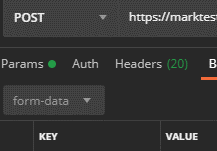
Change the format dropdown to be form-data
For the first record, inside the key field hover your mouse over the right-hand side and a dropdown will appear. It is defaulted to Text. Click it and choose File. This will cause a Select Files button to appear in the Value Field.
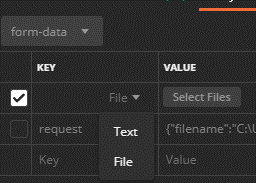
Click the button and browse to the file to be uploaded.
Once this is selected, you can submit the request send the request to upload the file.
Sample Successful Upload
[
{
"filename": "filename.xxx",
"error": null,
"complete": true
}
]
Sample Failed Upload
An error occurred uploading the file.Get Actions Queue
After uploading a file, it will be loaded into a queue. The uploadedFileId of the file will not be created until the file has been processed and stored in Shufflrr. When files are first sent in, the queue will show them with actionType set to "ProcessUploadedFileAction" and the status is set to "New". DO NOT use the ID element because the ID in the queue is temporary; it is not the final file ID in Shufflrr.
Once the file is processed in Shufflrr, it will then get it’s uploadedFileId. The uploadedFileId element is the ID for the file you uploaded matching on:
- file name
- folder id uploaded to
- actiontype value of “ProcessUploadedFileAction”
- status value of “CompletedSuccess”
The file information will remain in the queue for 24 hours or until a user Dismisses the file from the queue in the Shufflrr UI.
| Method type | GET |
| API Location | https://wwwapi.shufflrr.com/api/actionsqueue |
| Swagger documentation location | https://wwwapi.shufflrr.com/api/docs/ui/index#!/ActionsQueue/ActionsQueue_Get |
If you wish to store the ID of files as they process use the uploadedFileId value.
Get list of files
To get a list of all files (presentation, video, images, documents, etc) use the get files API. Sending the request without any parameters will return all the files in the portal.
| Method type | GET |
| API Location | https://wwwapi.shufflrr.com/api/files |
| Swagger documentation location | https://wwwapi.shufflrr.com/api/docs/ui/index#!/Files/Files_Get |
If you wish to match up on parentFolderId and name and store the id value for the specific file
Get File
To get the detailed information on a specific file call the Get File API. Replace the {id} in the url below with the file id that you want to get the information on.
| Method type | GET |
| API Location | https://wwwapi.shufflrr.com/api/files/{id} |
| Swagger documentation location | https://wwwapi.shufflrr.com/api/docs/ui/index#!/Files/Files_Get_0 |
Where {id} in the above API Location is the File ID of the file you want to get
Update information on an existing file
To update information on a file that was previously uploaded (File Name & Description), use the update files API. The ID in the Body of the request is the ID of the file to change the information on.
| Method type | PUT |
| API Location | https://wwwapi.shufflrr.com/api/files |
| Swagger documentation location | https://wwwapi.shufflrr.com/api/docs/ui/index#!/Files/Files_Put |
Sample Request Body
{
"id":0,
"name":"NewFileName.pptx",
"description":"New description"
}
Replace 0 with the file ID you want to apply the new file name and description to. Specify the file name and description that you want updated on the file
Move a file
To move a file into a different folder, use the move files API
| Method type | POST |
| API Location | https://wwwapi.shufflrr.com/api/files/move |
| Swagger documentation location | https://wwwapi.shufflrr.com/api/docs/ui/index#!/Files/Files_Move |
Sample Request Body
{
"fileIds": [
X
],
"targetFolderId": 0,
"overwriteExisting": true
}
Update the above Request body by:
- Replace X with the file ID (can also do a comma separated list of file IDs) you want to move to the new folder.
- Replace 0 with the folder ID you want to move the file(s) into.
- If you wish to overwrite a file (with the same name) in the destination folder then leave overwriteExisting set to true.
- If you change overwriteExisting to false and it encounters a file in the destination folder with the same name, it will not move the file and will return a response of “File already exists.”
Download a file
To download a file from Shufflrr use the files download API. Replace the {id} in the URL below with the ID of the file you want to download.
| Method type | GET |
| API Location | https://wwwapi.shufflrr.com/api/files/{id}/download |
| Swagger documentation location | https://wwwapi.shufflrr.com/api/docs/ui/index#!/Files/Files_Download |
Where {id} in the above API Location is the File ID of the file you wish to download
Remove file
To remove a file from Shufflrr, use the delete file API. Replace the {id} in the above URL with the file ID to be removed.
If you wish to remove the file immediately send in an empty request body. If you wish to set an expiry date on the file instead, set the fields value in the request to the ID of the file (or a comma separated list of files) you want to set an expiry Date on and set the expiryDate value to the date you want Shufflrr to automatically expire the file(s) on.
| Method type | DELETE |
| API Location | https://wwwapi.shufflrr.com/api/files/{id} |
| Swagger documentation location | https://wwwapi.shufflrr.com/api/docs/ui/index#!/Files/Files_Delete_0 |
Where {id} in the above API Location is the File ID of the File you wish to remove
Sample Request Body
To remove immediately $$$$$$$$$$$$$$$$$$$$$$
{}To set expire date $$$$$$$$$$$$$$$$$$$
{
"fileIds": [
 0
],
"expiryDate": "2020-10-27T22:39:59.678Z",
"clearExpiryDate": false
}
Replace 0 with the ID of the file (or comma separated list of the files) you wish to set the expire date on. Replace the value in the expiryDate element to contain the time and date you want Shufflrr to expire the file(s) on.
Presentation Slides
To get information on all the slides of a specific presentation use the Presentation Slides API. Replace the {id} in the url below with the file id of the presentation you want the slide information of.
| Method type | GET |
| API Location | https://wwwapi.shufflrr.com/api/presentations/{id}/slides |
| Swagger documentation location | https://wwwapi.shufflrr.com/api/docs/ui/index#!/Presentations/Presentations_Slides |
Where {id} in the above API Location is the File ID of the Presentation you wish to get the slides of