

Chapter 1: The SharePoint PowerPoint Problem
In organizations across the world, Microsoft SharePoint has become the de facto platform for managing and sharing corporate content. Combined with Microsoft 365, Teams, and OneDrive, it forms a collaborative digital workspace that empowers employees to create, store, and distribute documents—including presentations. However, as intuitive and robust as SharePoint can be for document management, it falls short when it comes to handling a specific type of asset that’s vital for driving business activity: PowerPoint presentations.
Despite being the most commonly used communication tool in business, PowerPoint remains trapped in a cycle of inefficiency and disorganization. Teams create, copy, modify, and re-upload decks, often repeating the same tasks across departments. SharePoint, while excellent for general file storage, was never designed to support the dynamic, modular, and reusable nature of presentation content. The result is what we call the “SharePoint PowerPoint Problem”—a widespread breakdown in how companies create, manage, and deliver their most critical messages.
A Tangle of Decks and Duplicates
Imagine the following scenario. A sales rep is preparing for a client meeting and needs slides on the company’s latest product features. She logs into the company’s SharePoint, searches for “product update Q1,”and is greeted with a dozen different PowerPoint files with similar names.Some are outdated, others are incomplete, and none are labeled in a way that clearly indicates what’s current or approved. After opening five decks, she starts copying and pasting slides to build her own version.
This is not an isolated issue. It’s a systemic problem that costs time, increases risk, and ultimately undermines the brand. Consider:
- Redundant Effort: Teams spend hours reinventing the wheel, creating slides that already exist somewhere in the organization.
- Version Confusion: Without clear version control, old or incorrect information often gets presented.
- Brand Dilution: Inconsistent templates, outdated logos, and off-brand messaging creep into decks, eroding brand equity.
- Compliance Risks: In regulated industries, presenting outdated or unauthorized information can lead to legal consequences.
All of this happens despite having a centralized platform like SharePoint.The core issue isn’t the absence of technology; it’s the absence of presentation-specific strategy and tools.
Why SharePoint Alone Falls Short
SharePoint is a powerful document repository, but it treats a PowerPoint deck like a static file. It doesn’t understand that a presentation is made up of reusable parts—slides, videos, charts—that need to be searchable, taggable, and trackable. There is no way to:
- Search for individual slides across multiple presentations
- Preview or reuse slides in a modular fashion
- Apply metadata to slides for improved discovery
- Track usage of slides and decks across departments
These limitations mean that SharePoint becomes a graveyard of decks— useful content buried under layers of folders and filenames. This is especially problematic in large enterprises, where hundreds of presentations are created weekly, and different teams often need to communicate consistent, up-to-date messages.
The Human Cost of Poor Presentation Management
The impact of the SharePoint PowerPoint Problem is not just technical— it’s deeply human. Employees waste time. Marketing loses control. Sales loses deals. And leadership loses confidence.
Let’s revisit our sales rep. She spends 4–5 hours searching, copying, and assembling a presentation. That’s half a day she could have spent preparing for the client, learning about their needs, or practicing her pitch.Instead, she’s stuck in a frustrating cycle of digital archaeology.
Marketing, meanwhile, has no idea which slides are being used in the field. They invest in high-quality content but can’t ensure its adoption.And compliance teams have no visibility into whether presentations meet regulatory standards.
This leads to inconsistent messaging, missed opportunities, and reduced productivity. Worse, it creates a culture where employees see presentations as a burden rather than a strategic tool.
Real-World Case: Pre-Shufflrr Chaos
Before adopting Shufflrr, one global financial institution used SharePoint as their primary content hub. Each department uploaded its own decks, often duplicating similar content. Sales reps had access to hundreds of folders, none of which were curated or monitored. When the compliance team audited presentations used in the field, they found multiple instances of unauthorized claims and outdated data.
The CMO realized that while they had invested heavily in SharePoint and Microsoft 365, they lacked a system that could handle presentations as living, evolving assets. That’s when they turned to Shufflrr.
The Role of Presentation Management
Presentation Management, as introduced by AlexAnndra and James Ontra, offers a new paradigm. It treats slides not as isolated files but as reusable, trackable enterprise assets. In a Presentation Management system:
- Slides are stored centrally and updated universally
- Users can search for and assemble slides quickly based on metadata
- Marketing can control branding and messaging at the source
- Sales can focus on conversations, not content creation
- Leadership can trust that the right message is being delivered, every time
This approach doesn’t replace SharePoint—it enhances it. By integrating a tool like Shufflrr into the SharePoint environment, companies can solve the SharePoint PowerPoint Problem at its root.
Shufflrr + SharePoint: A Better Way Forward
Shufflrr is built for presentation management. When layered onto SharePoint and Microsoft 365, it transforms how companies interact with their presentation content. Here’s how:
- Central Slide Library: Shufflrr provides a visual interface where users can browse, preview, and reuse individual slides.
- Metadata and Tagging: Each slide is tagged with relevant metadata, making search more effective.
- Insert Assembly: Users build new decks by inserting slides from the library, eliminating copy-paste chaos.
- Real-Time Updates: When a source slide is updated, all linked decks reflect the change instantly.
- Analytics: Admins see which slides are used most, by whom, and in what context.
This integration ensures that SharePoint continues to serve as the backbone of enterprise content management, while Shufflrr adds a muchneeded layer of intelligence and agility to presentation workflows.
Overcoming Resistance to Change
Implementing a presentation management strategy often meets resistance.Teams are used to their habits, even if those habits are inefficient. IT departments may hesitate to add another tool. But the costs of inaction are far greater than the effort of change.
Here are key steps to drive adoption:
- Executive Sponsorship: Get buy-in from leadership to priority presentation strategy.
- Pilot Programs: Start with a single team (e.g., sales or marketing) to demonstrate impact.
- Training & Enablement: Teach users how to access and use the new system.
- Metrics & Reporting: Share time savings, content usage, and branding compliance data to prove ROI.
Looking Ahead
The future of enterprise communication is agile, data-driven, and visual.Presentations are no longer one-and-done files—they are dynamic assets that tell a consistent, compelling story across every department and interaction.
To get there, companies must address the SharePoint PowerPoint Problem head-on. They must shift their mindset from “file storage” to “content strategy.” And they must adopt tools like Shufflrr to bring that strategy to life.
In the next chapter, we’ll explore how to transition from one-off decks to enterprise assets by embedding presentation management directly into your Microsoft 365 environment—starting with practical steps for configuring your SharePoint libraries and integrating Shufflrr into everyday workflows.
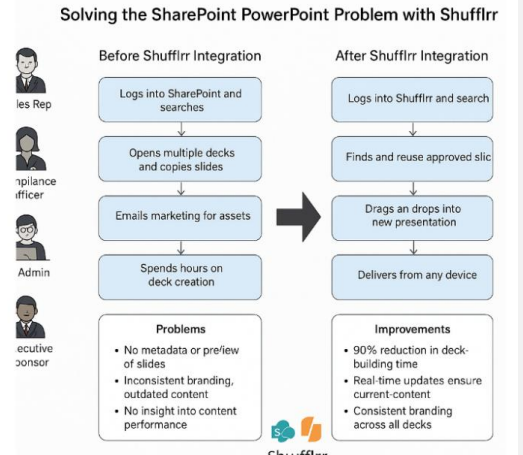
Use-Case Model: Solving the SharePoint PowerPoint Problem with Shufflrr
Overiew This model illustrates how key stakeholders interact with presentation content before and after implementing a presentation management solution like Shufflrr within a Microsoft 365 and SharePoint environment.
Actors
| Actor | Role |
| Sales Rep | Creates and delivers client-facing presentations |
| Marketing Manager | Manages brand assets and corporate messaging |
| Compliance Officer | Ensures regulatory and brand compliance |
| IT Admin | Manages SharePoint infrastructure and integrations |
| Executive Sponsor | Drives adoption and oversees strategic alignment |
Use-Case Scenario A (Before Shufflrr Integration)
Title: “Building a Presentation in SharePoint Without Presentation Management”
- Goal: Sales rep prepares a custom deck for a client meeting.
- Trigger: Sales rep needs product updates and marketing slides.
- Steps:
- Logs into SharePoint and searches for “Q1 Product Deck.”
- Browses through dozens offiles with unclear versioning.
- Opens 5+ decks, copying and pasting slides into a new one.
- Emails marketing for missing assets.
- Spends 4–5 hours on deck creation.
- Problems:
- No metadata or preview of individual slides.
- Inconsistent branding and outdated content.
- No insight into which content performs well.
Use-Case Scenario B (After Shufflrr Integration)
Title: “Assembling a Presentation via Shufflrr in Microsoft 365”
- Goal: Quickly build a custom, compliant, branded deck.
- Trigger: Sales rep needs slides for an upcoming client meeting.
- Steps:
- Logs into SharePoint-integrated Shufflrr.
- Uses filters and tags to find approved, current slides.
- Inserts selected slides into a new presentation.
- Edits content if allowed, within compliance guardrails.
- Previews and delivers from any device (desktop/tablet).
- Improvements:
- 90% reduction in deck-building time.
- Real-time updates ensure only current content is used.
- Slide-level analytics help marketing refine messages.
- Consistent branding across all decks.
Business Outcomes
| Metric | Before Shufflrr | After Shufflrr |
| Time to Build Presentation | 4–5 hours | 5–15 minutes |
| Brand Compliance | Low (variable) | High (central control) |
| Slide Usage Visibility | None | Full analytics |
| Content Reuse | Manual (copy/paste) | Seamless (Insert) |
| Employee Confidence | Frustrated/confused | Empowered/productive |
System Integration Summary
| Component | Role |
| SharePoint | Repository for storing source files |
| Shufflrr | Interface for managing, reusing, and assembling slides |
| PowerPoint Online/Desktop | Final presentation delivery platform |
| Microsoft Teams | Collaboration on slide creation and usage |
| Azure Active Directory | User authentication and permission control |