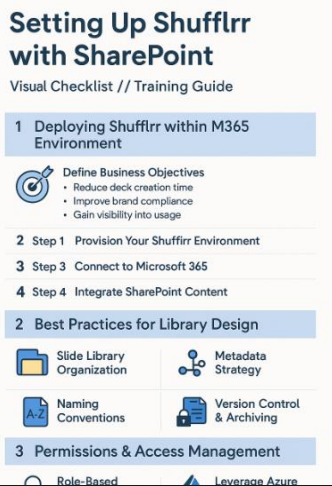
Chapter 4: Setting Up Shufflrr with SharePoint
Implementing presentation management at scale begins with a solid technical foundation. Shufflrr, when deployed within a Microsoft 365 (M365) environment and integrated with SharePoint, unlocks a seamless experience for building, managing, and deploying enterprise presentations. This chapter provides a detailed, step-by-step guide to deploying Shufflrr, designing your SharePoint libraries for optimal content reuse, managing permissions across departments, and reviewing real-world configurations for marketing and sales teams.
Part 1: Deploying Shufflrr within Your M365 Environment
Step 1: Define Business Objectives
Before you begin any technical setup, align stakeholders around key business goals:
- Reduce deck creation time
- Improve brand compliance
- Enhance cross-departmental content reuse
- Gain visibility into presentation usage
Get buy-in from marketing, sales, IT, and compliance early. These teams will own various components of the system.
Step 2: Provision Your Shufflrr Environment
Reach out to Shufflrr to provision your enterprise instance. This includes:
- Unique Shufflrr domain
- Secure cloud hosting with enterprise encryption
- Admin and user access provisioning
Step 3: Connect to Microsoft 365
Shufflrr supports Azure Active Directory (AAD) for Single Sign-On
(SSO) and user provisioning.
- Configure SSO using SAML 2.0 with AAD
- Map SharePoint groups to Shufflrr roles
- Enable conditional access policies if required
Step 4: Integrate SharePoint Content
Link SharePoint document libraries to Shufflrr so content can be accessed, tagged, and reused.
- Use Shufflrr’s import tool to ingest decks
- Tag individual slides with metadata during import
- Maintain folder structures where appropriate for familiarity
Step 5: Configure PowerPoint & Teams Integration
Users can:
- Open Shufflrr directly from within PowerPoint
- Insert slides from Shufflrr into live decks
- Share decks via Teams using Shufflrr share links
Ensure Office add-ins are enabled across the organization and provide quick-start guides.
Part 2: Best Practices for SharePoint Library Design
A strong SharePoint structure makes Shufflrr even more effective. Here’s how to design your libraries:
A. Slide Library Organization
Create dedicated libraries or folders by function:
- Marketing Library – Brand guidelines, campaign slides, messaging frameworks
- Sales Enablement – Product slides, pricing, testimonials, value propositions
- Training Materials – Onboarding, compliance, internal policies
- Executive Communication – CEO decks, board slides, earnings calls
B. Metadata Strategy
Establish a standard metadata schema to enhance search and filtering:
- Topic – e.g., AI Solutions, Oncology, Customer Onboarding
- Department – Sales, Marketing, Legal, HR
- Region – North America, EMEA, APAC
- Use Case – Investor Pitch, Client Demo, Training
- Compliance Level – Internal Only, Public, Regulated
Use SharePoint’s Managed Metadata Services for consistency.
C. Naming Conventions
Ensure all files and slides follow a predictable format:
- [Function][Topic][Version]_[Date] e.g., Sales_OncologyOverview_v3_2025-01-15.pptx
This aids both human users and Shufflrr’s indexing engine.
D. Version Control & Archiving
Enable versioning for all libraries. Periodically archive older decks into a separate library to reduce clutter. Shufflrr can maintain linkage to master slides even when moved.
Part 3: Permissions & Access Management
To ensure security and compliance across your organization, follow these guidelines for access management:
A. Role-Based Access Control (RBAC)
Assign permissions based on responsibilities:
- Admins: Full access, system settings, integrations
- Content Owners: Upload/edit slides, tag content, approve updates
- Reviewers/Approvers: Compliance/legal teams
- End Users: Browse, search, assemble, and share decks
B. Leverage Azure AD & SharePoint Groups
Use Microsoft 365 groups to manage access:
- SharePoint permissions propagate into Shufflrr
- Synchronize updates via AAD to ensure continuity
C. Enforce Read-Only for High-Risk Content
Lock down certain content (e.g., legal disclaimers, pricing) so it cannot be modified. Shufflrr supports “non-editable” zones in presentations.
D. Monitor Access and Use
Use Shufflrr’s built-in analytics to:
- Track who is accessing which slides
- See how often decks are being shared
- Identify content that is outdated or underused
Part 4: Real-World Integration Examples
- Marketing Asset Library
Objective: Ensure brand consistency and messaging alignment across all public-facing decks.
Configuration:
- Slides tagged with product line, campaign name, audience type
- All assets curated by the brand team
- Shufflrr dashboards show most-used assets and outdated content
Workflow:
- Marketing uploads a new product launch deck
- Slides are tagged and approved for reuse
- Sales and comms teams pull slides into their custom decks
- Updated slides replace older versions enterprise-wide
Result:
- Improved brand compliance (measured at 97%)
- 60% increase in slide reuse across teams
2. Sales Enablement Workspace
Objective: Enable sales reps to build personalized, compliant presentations in under 30 minutes Configuration:
- Content organized by sales funnel stage: Discovery, Proposal, Closing
- “Mandatory” slides (e.g., disclosures) enforced by Shufflrr
- Integration with Teams for quick collaboration and sharing
Workflow:
- A rep selects industry-specific slides from the Shufflrr workspace
- Mandatory compliance slides auto-inserted based on region
- Rep customizes deck and shares with client directly from Teams
Result:
- Time-to-deck creation reduced from 4 hours to 20 minutes
- Sales productivity increased by 30%
- Client satisfaction scores improved due to professional, relevant materials
Conclusion Setting up Shufflrr with SharePoint empowers your organization to transform presentation chaos into a centralized, compliant, efficient system. By following best practices in architecture, permissions, and
cross-team design, you ensure scalability and usability across departments.
With marketing and sales teams aligned, IT providing structure, and analytics feeding insight back into content strategy, you lay the foundation for a truly modern communication ecosystem.
In Chapter 5, we’ll dive into the art of curating your enterprise slide library—how to tag, categorize, and evolve your presentation content for maximum usability and strategic impact.