

“Our presentations never finish,” says Bob Davis, associate vice president of marketing for HealthTrust Purchasing Group, the purchasing division for HCA Healthcare, which operates 178 hospitals and 119 surgical centers throughout the United States and United Kingdom.
In presentation management, files are never “done.” Instead, they evolve, just like the businesses they represent. Slides and decks continually morph and adjust to the market and to the world in which the business operates. The companies and organizations that get the most out of presentation management evolve their content through a constant lifecycle – or what we call The Wheel.
The Wheel looks like this:
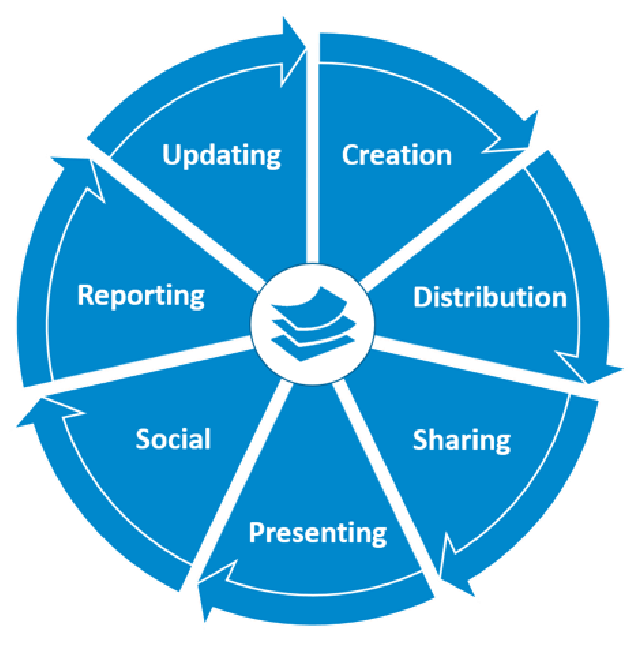
The process illustrated by The Wheel involves seven steps that generally follow each other, leading back to the beginning.
As we describe the elements in this chapter, you will notice that they overlap. In nature when something evolves there is no clearly defined start and end to a phase, but rather things morph. Same holds true for your presentation files. They morph from one phase to the next in the communication cycle of a corporate presentation.
The first step is creation – the act of creating slides and other content for presentations. Once created, the files are distributed through the presentation management system – into the cloud to be accessed by anyone with permission. Sharing goes hand-in-hand with distribution in this case, sharing content with others inside or outside the enterprise.
Presenting is the act of using the content to present. Socializing the presentation is a way to get comments and feedback. Reporting means gathering data about how content is being used to better understand what’s effective. Then all of that feedback and data can be used to update and improve slides and decks – a new act of creation that starts the process all over again.Let’s break down the details of each step.
Presentation Creation
In presentation management, creation means both content collection as well as the actual creation of a file.
A lot of good content probably already exists around your company. It’s a matter of identifying the files, and then deciding if they are presentation management-worthy – for short, PMW. How do you determine if a file is PMW? Presentation management addresses both the long-term enterprise vision and the tactical day-to-day needs of employees. We suggest starting with the experts for each division. They most likely have great content for their particular product on hand.
Cooper Standard asked the regional leaders around the world as well as the directors for each product line. Each director made recommendations for how their content should be used, and then they contributed the content. As you review your company’s content, ask yourself which files cover enterprise information, which files cover tactical information and which files cover both. What content is big picture? What content is going to get my sales rep to close the deal? Or move a project forward?Or educate a new hire? What are the team’s objectives? That will determine which content is PMW.
Content can be created in any application. PowerPoint is the most obvious. Thirty million PowerPoint presentations get created every day. PowerPoint is broken into individual slides, and each slide is a story in itself. PowerPoint makes it really easy to prepare presentations for those tactical, everyday meetings that keep the company humming along.
But presentation management doesn’t have to be confined to PowerPoint.It can work with other apps. Apple’s Keynote has great visuals and effects; Google Slides is cloud-based, which makes access easy; and Prezi is a popular app to create interactive presentations. Presentation management works with all file types that your team members use every day to get their job done: videos, images, Word docs, PDFs, spreadsheets, you name it. Make content in Photoshop, Quark, Apple iMovie — it doesn’t matter as long as the files can be previewed, reused and repurposed when needed. Anything that can be presented to and discussed with one or more people is content that should be considered in your presentation management strategy.
Compliance should go hand-in-hand with creation to make sure content is up-to-date, accurate, branded and approved. Your industry will determine your compliance requirements, which can be implemented and enforced through the presentation management platform. Here are a few examples of compliance:
- Legal Compliance: In highly regulated industries like health care and financial, strict rules govern what can be presented, to whom, by whom, in what format or context and finally with proper disclosures and disclaimers.Your PM strategy can manage this content in three ways. First, with routing and workflow approvals that ensure that the lawyers and regulators have approved the content before it becomes available to the team. Second, with file- or slide-locking features to prevent your team from changing text or other content. And third, by linking features to force required disclaimer and disclosure statements along with the content where appropriate. With presentation management you can force your dispersed team to present content in a very specific way – a way that complies with the law and reduces your company’s risk of lawsuits and fines. Our banking clients used slide linking to match the proper disclosure statement to the corresponding slide.
- Brand Compliance: Brand compliance refers to brand guidelines, graphics,colors, fonts, logos and templates for all files that follow the brand’s guidelines. The benefits are twofold. First, you achieve consistent branding across the enterprise. Second, because your employees are starting with higher-quality content, they appear more polished and professional, but they also become more productive. As they repurpose presentations, they can actually focus on the specifics of their project or deal instead of trying to play graphic designer to make the slides look nice. We encourage all our clients to use only branded content. Start with the best.
- Message Compliance: What your employees say and how they say it are critical to your company’s success. Message compliance ensures that your team is using the right language and the right version of the slide or file. It’s achieved through good old-fashioned copywriting. And, like legal compliance, it can also be achieved through slide and file linking. For example, if a case study is five slides long, you can link all five slides, so if a user chooses one, he or she always gets all five. This way employees are forced to present the case study in its entirety, ensuring that they tell the whole story, and not just the bits and pieces that they like. (Imagine if we could do that in our personal lives. There would be no misunderstandings, no rumors or good gossip! And then we’d have nothing to talk about over cheap Chardonnay.)
Your presentation management strategy is as good as the presentation content provided. Collecting, creating and policing all of a company’s content may seem like a big task, and it may very well be the first time around. But once that investment has been made, it will make everyone in your organization more productive, and the lifecycle will perpetuate itself as part of the normal course of business. It’s a one-time investment that reaps exponential rewards.
Distribution
Where will the content reside? How will it be accessed? Who gets access? How do users find the specific content they need? Those are all issues concerning distribution in presentation management. Let’s answer these questions one at a time.
Where is the content? Host the content on the cloud, because that’s where users can get to it, whether they are sitting inside corporate headquarters or working from home. Most of our clients subscribe to our hosting service. But there are a few who prefer to keep their content on the premises, in which case they install Shufflrr on their own cloud. The goal is to make sure users can get content, anywhere, anytime, from any device. There’s nothing more frustrating than sitting down at your desk to get some work done only to realize that you are locked out for some dumb reason.
How is content accessed? Access begins with logging into the slide library. Users then find content through search and visualization. The quality of the slide library, visualization, content hierarchy, search and permissions will affect the ease or the difficulty with which users can successfully find what they need.
What about logins? The No. 1 reason we get help requests: a user can’t log in, usually because he or she forgot the password or URL. It happens all of the time for cloud services, not just for Shufflrr. Most of our clients support single sign-on, or SSO. When a user is logged into the company network, he or she can access the library. There are no additional passwords to remember. To make it even easier, some clients create a dashboard of all of their services on one home page. That way employees don’t need to remember a bunch of different URLs. The benefit of SSO is that when employees leave the company, they lose access to their slide library, too. From a security standpoint, it’s tighter. Another option is to integrate your presentation management solution with a complementary content management system (CMS) like Box or SharePoint, or a sales enablement service like Salesforce. Last, but not least, a login can be a stand-alone with unique credentials. Choose the path of least resistance, whatever will be easiest for your team to find and access their slide library.
How does the visual slide library work? All files in presentation management are formatted and ready to present. A slide library is a tool that visualizes the content. It makes a thumbnail of every slide in a PowerPoint or page in a Word doc. You can give content a quick preview, or read it closely, so you can decide if it’s the right content for your next meeting. Then you can select the pieces of those files and reorganize them into your new presentation. The purpose of the slide library is to turn every piece of content into a slide, ready for use. The slides are then presented to the user so he or she can decide to use it in a new presentation. Like it’s saying, “Look at me! I have some great words, with nice animations and a pretty picture. Pick me for your new presentation!” A piece of content can also say, “Present me right now in the middle of your meeting. I’ve got all the info your client is asking about, and I am ready to go.” That’s an accessible slide library with productive content.
What is content hierarchy? This is how the content is organized. It’s a combination of folders, subfolders and tags. A good place to start when trying to decide how to organize your content is to look at how your company is organized: by product, by service, by region, etc. For example, pharmaceuticals organize their content by drug and disease.Financial services companies usually organize their slide library by banking service: retail banking, wealth management, business banking, etc. International cruise lines organize their content by tour destinations and ships. Also consider the purpose of the content: case studies, company histories, product overviews and executive bios all serve different objectives. The objective of a piece of content will determine where to put it in the hierarchy and who will be given access.Content hierarchy is integral to presentation strategy. Your presentation management team will ask what is the content, who will present it, and in what business setting. The answers to those questions will guide the content hierarchy for your library, and guide the permissions.
How does the search function operate? No matter how well-structured that hierarchy is, everyone’s thought process is different. Think of a 10year-old boy looking for his socks. He calls down to his mother, “Mom, where are my socks?” She replies, “In your room, where they belong.”She’s thinking the dresser. But the poor child is looking on the floor because that’s where little boys think all things should go, including socks. Two different perspectives in the same place, for the same item.And that’s why a visual search tool is critical for distribution. Visual search lets you preview thumbnails of the search results, so you can skim through your options before you make a choice. Contextual search, where the files are automatically indexed upon inclusion in your slide library, will minimize the need for additional meta-tags, and compensate for content hierarchy limitations. Contextual search means that all of the text that occurs naturally within the file: the file name, the titles and subtitles, the body copy and for PowerPoint speaker notes, is automatically searchable. Filtering search parameters allows users to zoom into a subset of content. When you have a library of 1,000 files and 10,000 slides, the ability to set your own search parameters will save users a lot time wasted browsing through the wrong files. In presentation management, we just want to make sure that everyone and anyone can find the files they need. Advanced search tools help achieve that.
Metadata, which is just a fancy word for tags, are another tool for organizing and searching for content. If a word naturally occurs within the context of the copy, then you don’t need to tag it. It will show up in the search. Add tags to a slide or file when it won’t naturally show up in search. Tags can also provide another way to organize the content. Tag a hundred files, and when the user does a search against that one tag, a clean list offiles will appear.
What about permissions? Permissions are a critical element of distribution because they direct the right content to the individuals and groups who need it most. And permissions hide content from people who should not use it. We wouldn’t want to burden a research assistant with financial content, for instance.
Permissions are a matrix of content access and functionality: who gets access to which files, and what are they allowed to do with those files.The answers to the questions below will be different for different members of your team. For example, an end-user in the field will have fewer editing permissions than a brand manager who is responsible for creating and updating her team’s content. Most of our clients create groups of users with the same permissions. The groups, like the content structure, represent the different lines of business, regions or executive levels in the company.
Here are some permissions that can be granted or denied. When applied to your organization, permissions allow for control of the message and mitigate risk caused by misuse of content. “They” in this case refers to individuals and groups. “They” will have a different permission level depending on who they are, and what they need to accomplish.
| Can they see it? | |
| Can they use the content, as is? | |
| Can they download it, remove it from the system? | |
| Can they download it in editable format? | |
| Can they download it in a locked or PDF format to prevent editing? | |
| Can they edit content? | |
| Can they contribute content? | |
| Can they organize the content into a hierarchy for their colleagues? | |
| Can they force those edits on other users? | |
| Can they mix and match that file with other files? | |
| Can they give other company users access to it? | |
| Can they share it with a third party? | |
| Can they make comments on a piece of content, a file or slide or video? | |
| Can they “like” or rate the content? | |
| Can they see and configure reports? | |
| Can they see and configure reports? |
Distribution is ultimately about productivity with control of the content, who is using it, and how they are using it. The purpose of control is to reduce risk and ensure consistent, accurate messaging across your organization.
Sharing
Sharing refers to how you share or send files to your clients and other third parties outside of your organization. This is especially important for sales, marketing and investor relations. Those presentations directly affect the company’s image and bottom line. It’s a seemingly mundane task, but it has huge implications for productivity. Files with images and videos tend to get too large and will be stripped from most corporate email systems. The file-size limit is different for every organization, so you don’t really know if your file will get through or not. Sharing gives media ad sales reps an easy way to send large video files to advertisers.Travel clients have high-resolution pictures and videos in their presentations, too. Anyone in any industry can have big files. The process of sharing these presentations is simple: Choose one or more files. They could be large PDFs, PowerPoints, Images or Videos, it doesn’t matter, as long as they tell the right story. Click on “Share,” input your customer’s email address and within seconds your customer can view the files. Like YouTube. It’s instantaneous.
Then, you can track consumption of the files. Did my client open it, download it, read it, ignore it — or maybe she just never received it? It’s productive to know how engaged your client is with the information you share because that will tell you how interested they are, and then help guide your next steps.
Similar to the permissions we just discussed, the shared files have permissions as well – permission to download, to edit, to view only and whether that would be for a limited time frame or in perpetuity. Users not only track how their recipients are consuming the files they send, they can also control their usage.
Share usage is a component in reporting. One user can track his shares for his own purposes, and the team leaders, which might be the presentation director and the VP of sales, can analyze share data for all users across the enterprise. Managers can see patterns and trends in content sharing, and make content adjustments accordingly.
Presenting
It wouldn’t be presentation management without the presenting. With today’s technology there are many options for how you present your content.
Human contact is how relationships are solidified. Look people in the eyes, read their body language, watch them react to what you are saying.That is how strong relationships are built. Presentation management fosters better business relationships through higher-quality meetings.Let’s look at how in some different presentation settings.
One-to-one: One-to-one meetings are less formal and more intimate.The presenter can give the presentation directly from her laptop, iPad or even her phone. One-to-one presentations allow for more feedback and discussion. It’s also an easier format to switch to interactive mode, where the presenter selects content based on the other person’s feedback. The presentation can follow the conversation. The presenter can learn more and therefore propose a better solution tailored to that person. These are very productive meetings.
One-to-several: This is typically a conference room setting where one presenter is addressing a group of up to 20 people. A monitor or screen is needed. Though it’s more formal in nature, there is still the opportunity to go interactive as audience members raise issues and ask questions. The FDA Advisory Committee presentations are one to several, with an emphasis on interactivity to conduct a detailed question and answer.
One-to-many: This is an auditorium setting, which is more formal.Presentation management allows the presenter to give a pre-rehearsed presentation while fielding and answering questions from audience members. The ability to answer tough questions on the fly, supported by visuals, adds to the speaker’s credibility.
Conference: Slide libraries are an integral tool for conference managers who need to collect and manage presentations for any number of speakers. In this scenario, your presentation management solution will manage the collection, organization, approvals and presentations on the day of the event. It reduces the administration burden on the event managers. Speakers send a presentation directly to the slide library, where it is automatically tagged based on pre-configured speaker credentials. Workflow settings can be applied so the presentation gets routed to the appropriate editors and/or approvers in preparation for the conference. And finally, on conference day, the presentations are already tagged and sorted so they can be assigned to the appropriate speaker, breakout room and time. The presentation is right there, ready to go on the podium. The speaker can even present directly from the library, if your library has broadcast capability.
Linear versus interactive presentations: A linear presentation, like your typical PowerPoint, is a pre-ordered set of slides — slide one, slide two, slide three, slide four and on and on.. It’s organized, predictable and easy for the speaker to control. Interactive presentations are more like browsing a website: You click on one thing, which leads you to another.Then, someone asks a question, so you spontaneously pull up another slide, video or image that addresses that question. It’s free-form and it follows the conversation. Linear presentations force the conversation.
Interactive presentations follow the conversation.Interactive presentations foster productive conversations where both sides learn more about the other. In more than 20 years of presentation consulting, we’ve noticed that the more senior the executive, the more likely they are to present in interactive mode. They don’t need the security of a linear list. Though the nice thing about today’s interactive presentation tools is that they can accommodate both scenarios. They can let you go off-topic and spontaneously present content, and then click a back button to get back to the main storyline. It’s the best of both worlds: control and spontaneity.
Social
“PowerPoint is going social!” Kristin Shevis, Chief Customer Officer for Clarifai, exclaimed when we explained the social capability of our Shufflrr app. It’s like Facebook or Instagram except the subject matter is your presentation content instead of your vacation pictures. (Yeah, I know, I’d prefer to see sandy beaches over org charts any day.) Users can follow, like, rate, comment and converse about files and slides.
Social provides spontaneous feedback in The Wheel, helping to improve the content’s quality for its next evolution. When you are collaborating with colleagues, you can see their comments directly on the slide or the file they affect, and then you can respond. Permissioned users can also see the conversation thread, so everyone can understand the context of the file and see how and why it evolved to its latest iteration. On an enterprise level, users can give direct feedback to their presentation team about the content in real time. They can write a quick comment about what’s good on a slide, or bad, or how a client reacted in a meeting given 15 minutes ago. It helps the presentation director asses the quality of the content, what’s resonating in the field and why, and provides direction for edits and updates going forward. Social also provides a means to give input and share knowledge among the entire group, rather than waiting for that next big status meeting. And let’s be honest, by the time that status meeting comes around, you’ve forgotten about that slide anyway.That’s why presentation management has commenting and other social features built in, to keep the feedback loop continual and timely.
Reporting
Reporting makes presentations smarter. It gives you real intelligence about what’s working and what’s not. Data can be tracked across multiple variables: slide, file, user, group, time frame and action. Actions are whatever you can do with a slide or file, such as upload, download, delete, update, view, share, broadcast, comment, like, rate, etc. You name it, it’s all tracked and time-stamped. Then, you can customize reports against any of these variables.
The reporting gives you real information that against which you can make real decisions. It helps determine what files and slides are used most often, by whom and presented to whom. What are your most popular products? What messages have your clients been exposed to?And what have they actually purchased? From there you can determine best practices and encourage those practices across other members of your team.
Charter Communications used reporting to cut the fat. The presentation team used to create brochures, rate cards and long-form decks for every single business category across 91 local markets. When the presentation team looked at their usage reports, they learned that their team of 1,500 reps barely used any of that content. They were successful without it. As a result, the presentation team cut down the material they created to just one three-slide deck for each category. They stopped wasting time and money creating content that wasn’t needed. And the reps got a smaller, better-organized, library of content that was easier for them to search through.
The value of feedback in presentation management multiplies when the quantitative data in reports is combined with the qualitative feedback from social. A data log will tell you that a file was never used. But a comment from a user will tell you that the slide is butt ugly, and they are embarrassed to show it. The product wasn’t bad, just the messaging.
And now you know how to fix that slide, and give your team better content. Feedback and analytics give a current and ongoing view of your marketplace.
And that brings us to…
Updating
Now that you have all of this great information about what products and content need to change, it’s useful and efficient to make the change once, and know that everyone in your organization will receive the updated version. It also helps to retire old, out-of-date, discontinued content. Ever sit in a meeting where your colleague pulls up last year’s pricing? Or worse, products that your company no longer sells? I guess he didn’t get the memo. With enterprise updating, you don’t need a memo. It just happens, automatically.
As Bob Davis of HealthTrust Purchasing Group notes, “We are always rewriting. Our account directors come back from a meeting with feedback and suggestions, and we go right back and rewrite the slides.We are always working on our slides.” With slide updating, he doesn’t worry that someone is using an older, outdated, wrong version.
With slide updating, there is a genealogy that occurs in presentations.One parent presentation begets children. When a slide is reused, dragged and dropped into a newly created presentation, that new presentation becomes a child. At U.S. Bank, one parent slide can exist in over 300 different presentations across the company. When the presentation director in the home office updates that one parent slide, all 300 versions get updated as well. That’s efficient, productive, compliant and consistent messaging.
The easiest way to incent a change is to start with what’s familiar. The elements of presentation management are already familiar. We all know how to edit and create decks. Some of us are better at it than others, but in business, we’ve all made at least one presentation. We all know how to search through a network or a website to find content. Visualization and better search take the frustration out of that process. We share files on YouTube, Dropbox, and a million other formats all the time. That’s nothing new. In business, we give presentations every day; the elements of presentation management make them better presentations. We spend hours commenting and liking on social media, so it’s not a stretch to do the same with your presentation content.
And finally, in the age of big data, we rely on metrics to see what’s trending so we make smarter decisions going forward. The elements of presentation management are not new, but presentation management is a new approach to how we treat our content and value presentations as an enterprise marketing asset.
Chapter 5 – Takeaways
- Presentations evolve along with your business.
- Presentation management is a comprehensive approach that facilitates each stage in the lifecycle of a presentation.
- The stages in the life of a presentations are: creation, distribution, sharing,presenting, social, reporting and updating.
- Content organization and search capability are critical elements to help your users actually find the content they need.
- Reporting will not only track who is using which content, it guide better content and messaging decisions going forward.